
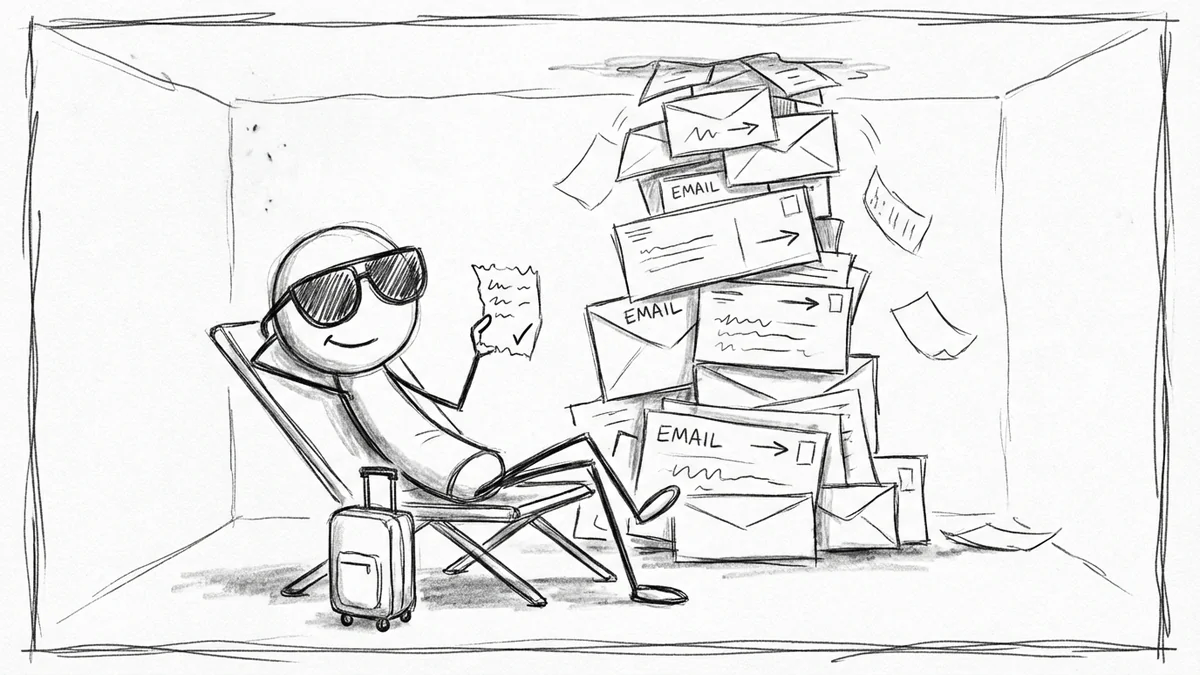

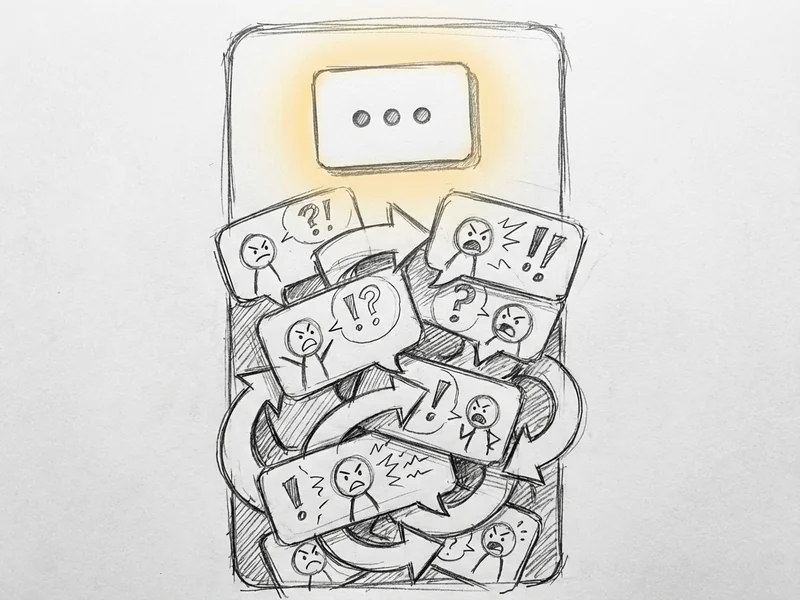
You come back from a long weekend. Your inbox has 347 unread messages. One client thread alone has 52 replies from 8 people arguing about a logo color. You don’t have time to read 52 messages about whether the blue should be “ocean” or “sky.”
This is the problem Gmail’s new AI summaries are built to solve. As of May 29, 2025, Gmail can now read that entire thread and give you the short version: “Team debated logo color. Decision: ocean blue. Action needed: approve final design by Friday.”
Ten seconds instead of ten minutes. Let me show you how it works.
Why This Actually Matters
Here’s the thing about email: according to McKinsey research via Harvard Business Review, the average professional spends 28% of their workweek just reading and answering email. That’s about 11 hours every week. 2.6 hours every day.
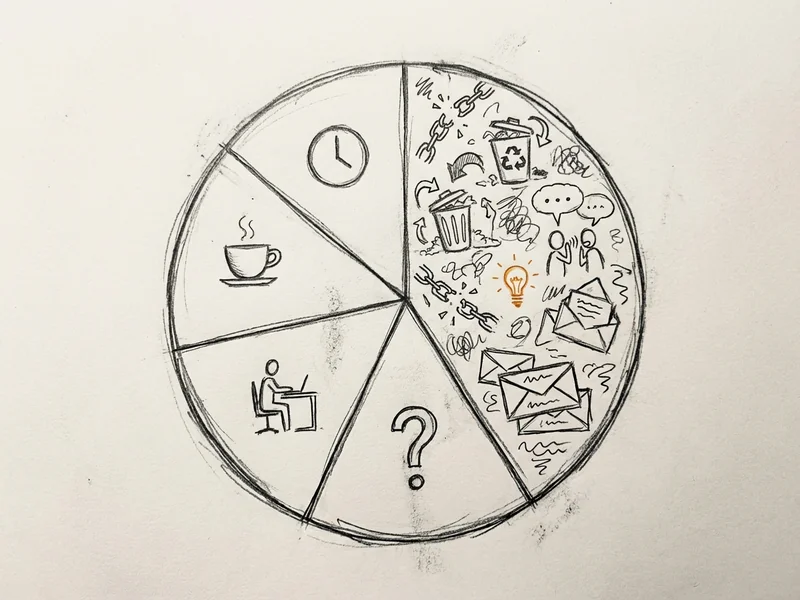
And here’s the kicker: only about 10% of those emails are actually business-critical. The rest is noise – reply-alls, FYIs, CCs that didn’t need to happen, and newsletters you swore you’d read but never do.
So when Google says Gemini can summarize your email threads automatically, the math is compelling. If AI can cut your email reading time by even 25%, that’s almost 3 hours a week back. 150 hours a year. Nearly four full work weeks.
How Gmail’s AI Summaries Actually Work
There are two flavors of AI summaries in Gmail now:
1. Summary Cards (Automatic)
These showed up in late May 2025 for mobile users first. When you open a long email thread – one with multiple replies or lots of back-and-forth – you’ll see a summary card at the top. Gmail automatically decides when a thread is complex enough to deserve a summary.
The summary includes:
- Key points from the entire conversation
- Any decisions that were made
- Action items or deadlines if they exist
When someone adds another reply, the summary updates automatically. So if you’re following a thread over several days, you don’t have to re-read everything to remember where things stand.
2. AI Overviews (On-Demand)
According to Gmail’s help documentation, if you don’t see an automatic summary, you can tap “Summarize this email” at the top of any thread and ask Gemini to generate one.
But here’s where it gets more interesting: as of January 2026, Gmail announced you can now ask your inbox questions in natural language. Things like:
- “Who sent me that quote for the roof repair last summer?”
- “What was the deadline Sarah mentioned for the Johnson project?”
- “Show me all the invoices from [vendor name] this quarter”
Gemini searches through your emails and gives you a direct answer, not just a list of messages to dig through. This is a bigger deal than the summaries, honestly. (If you’re curious how Gemini compares to other AI tools, I wrote about when to use Gemini vs. Claude.)
Who Gets Access?
This is where it gets a little complicated. Google has different features for different accounts:
Summary Cards (the automatic ones):
- Google Workspace Business Starter, Standard, and Plus
- Google Workspace Enterprise plans
- Google One AI Premium subscribers ($19.99/month)
- Personal Google accounts in the US only
AI Overviews (natural language inbox search):
- Google AI Pro and Ultra subscribers only
- Help Me Write and Suggested Replies are now free for everyone, though
If you’re outside the US on a personal account, you’ll need to wait – Google is rolling out to more regions over time. The help documentation says it’s available in multiple languages globally for Workspace accounts, but “restricted to the US only” for personal accounts.
How to Turn It On (or Off)
If you have access, here’s how to make sure it’s enabled:
- Open Gmail on your computer
- Click the gear icon (Settings) in the top right
- Click “See all settings”
- Under the General tab, scroll to “Google Workspace smart features”
- Click “Manage Workspace smart feature settings”
- Turn on “Smart features in Google Workspace”
- Save
If you don’t like the summaries – maybe they’re not accurate enough, or you just prefer reading everything yourself – you can turn them off the same way. Turning off smart features will also disable other Gemini features like the side panel assistant, though.
Important note: These features are OFF by default in the European Economic Area, Japan, Switzerland, and the UK due to privacy regulations. You’ll need to manually enable them.
My Honest Take: Is It Actually Useful?
I’ve been using Gmail’s AI summaries since they rolled out. Here’s what I’ve found:
What works well:
- Long threads with multiple people – the summary catches you up quickly
- Threads where decisions were made buried in the middle – the summary surfaces them
- Coming back from vacation – scanning summaries instead of reading everything saves real time
What doesn’t work as well:
- Nuanced discussions – sometimes the summary misses context that matters
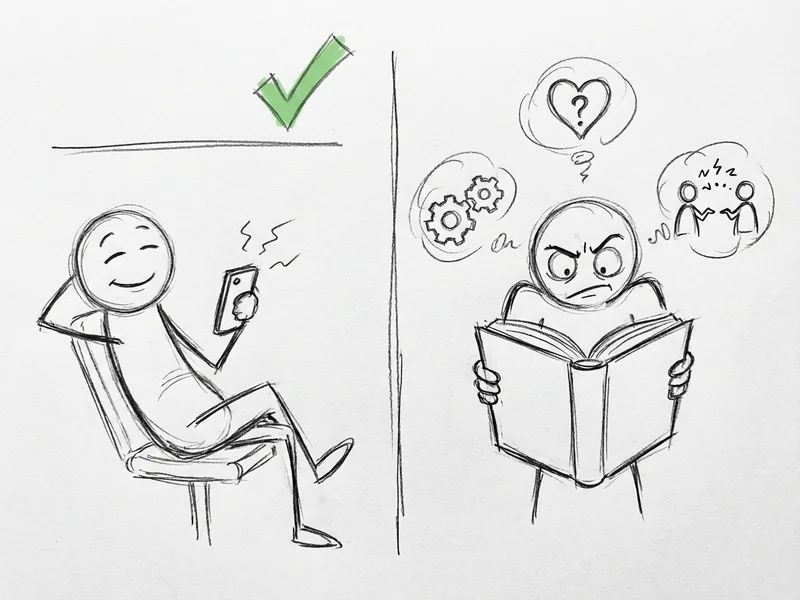
- Emotional tone – if someone’s upset, the summary might not convey that
- Very technical threads – summaries can oversimplify important details
My approach: use the summary to decide if I need to read the full thread, not as a replacement for reading it. If the summary says “team agreed on the budget,” I’ll still skim the thread to make sure I understand what “agreed” actually means.
The Bigger Picture: Email Isn’t Going Anywhere
Over 376 billion emails are sent every single day. Gmail alone has 3 billion users. Despite Slack, Teams, and every other messaging app trying to kill it, email keeps growing.
The problem isn’t email itself – it’s email volume. And that volume isn’t going down. AI summaries aren’t going to solve inbox overload, but they can make it more manageable. Think of it as triage, not a cure.
The best email strategy is still:
- Unsubscribe from things you don’t read
- Use filters to organize what comes in (and make sure your important emails don’t land in spam)
- Check email at set times instead of constantly
- Let AI help you triage what’s left
Research shows it takes about 23 minutes to fully refocus after an email interruption. If you check email 10 times a day, that’s nearly 4 hours lost to context-switching. The real win isn’t faster reading – it’s checking less often and reading smarter when you do.
What This Means for Small Businesses
If you’re a small business owner with a Google Workspace account, you already have access to these features. Turn them on. See if they help.
If you’re on a free Gmail account in the US, you’ve got basic summaries available. They’re not as full-featured as the paid version, but they’re useful for long threads.
If you’re outside the US or haven’t gotten the features yet, they’re coming. Google rolls these out gradually, so if you don’t see them now, check again in a few weeks.
The question isn’t whether AI email tools are useful – they are. The question is whether you’ll actually change how you work to take advantage of them. Most people turn on a feature like this, use it for a week, and then forget about it.
Don’t do that. Pick one thing: use summaries to triage your inbox every morning instead of reading every message. See if it saves time. If it does, keep doing it. If it doesn’t, at least you tried.
Need Help Getting Your Workspace Set Up?
If you’re on Google Workspace and not sure if you’ve got these features enabled, or if you’re thinking about switching to Workspace but aren’t sure if it’s worth the cost – let’s talk. I can walk you through what’s available, what makes sense for your business, and what you can skip.
No pressure to buy anything. Sometimes the answer is “your current setup is fine.” I’d rather tell you that than sell you something you don’t need.