
The Problem
No-shows are the silent killer of service businesses.
A massage therapist in SLO told me she was losing 3-4 clients a week to no-shows. At $80 per session, that's $250-320 in lost revenue every single week. Over $12,000 a year just vanishing.
"I'd set up the room, wait around, and then... nothing. No call, no text, no apology. Just an empty hour I could've booked with someone else."
The fix isn't complicated. People forget. They get busy. A simple reminder 24 hours before makes all the difference. A second one 2 hours before catches the ones who saw the first one and thought "I'll deal with that later."
After adding SMS reminders, she's down to maybe 1 no-show per month. Not per week. Per month.
What This Does
- Checks your Google Calendar daily at 8am for upcoming appointments
- Sends a 24-hour reminder with appointment details
- Sends a 2-hour reminder to catch last-minute forgetters
- Personalized messages with client name and appointment time
- Logs every reminder sent to a Google Sheet for tracking
You don't have to remember to send reminders. You don't have to copy-paste times. It just happens automatically, every single day.
How It Works
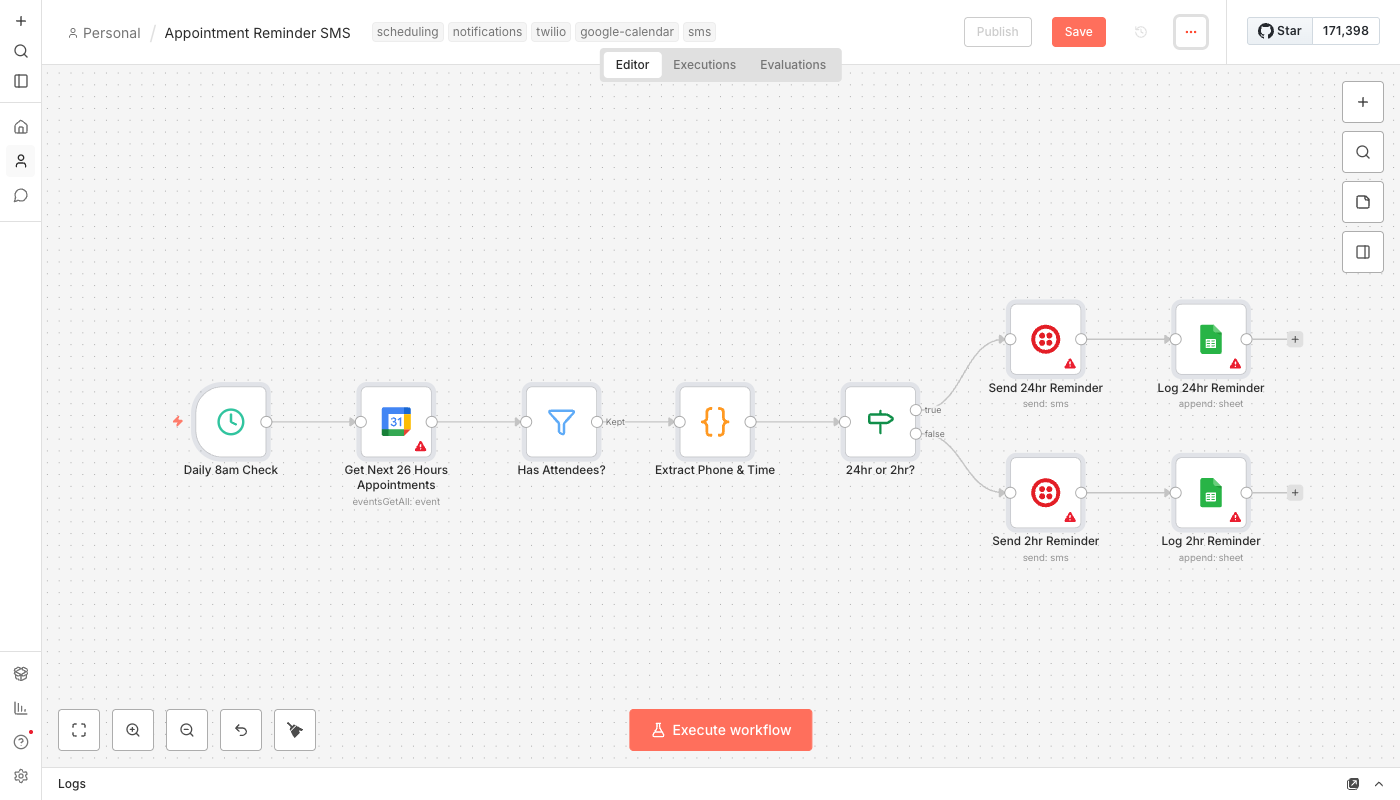
Simple flow:
- Daily trigger at 8am kicks off the workflow
- Pulls appointments from the next 26 hours from Google Calendar
- Filters for appointments with attendees (and phone numbers in the description)
- Calculates timing to determine if it's a 24-hour or 2-hour reminder window
- Sends SMS via Twilio with a personalized message
- Logs the reminder to a spreadsheet so you know what was sent
The workflow runs twice a day to catch both the 24-hour window (morning run) and the 2-hour window (run it again at 6am if you have early appointments).
What You'll Need
Here's the setup:
- n8n instance - Self-hosted (free) or n8n Cloud ($20/month)
- Google Calendar - Where you schedule appointments
- Twilio account - For sending SMS messages
- Phone number in calendar events - Add "Phone: 555-123-4567" to event descriptions
About Twilio costs: Each SMS costs about $0.0079 (less than a penny). If you send 2 reminders to 100 clients per month, that's $1.58. The cost is trivial compared to even one prevented no-show.
Setup Instructions
- Set up Twilio
- Create a Twilio account at twilio.com
- Get a phone number ($1/month)
- Copy your Account SID and Auth Token
- Prepare your calendar events
- Add client phone numbers to event descriptions
- Format: "Phone: 555-123-4567" (the workflow looks for this pattern)
- Import the workflow into your n8n instance
- Connect Google Calendar
- Add your Google account credentials
- Select which calendar to watch (usually "primary")
- Connect Twilio
- Add your Account SID, Auth Token, and phone number
- Customize the messages
- Edit the SMS text to include your business name
- Adjust the tone to match your brand
- Create a log spreadsheet (optional but recommended)
- Create a Google Sheet called "Reminder Log"
- Add columns: Timestamp, Client, Phone, Appointment, Time, Reminder Type
- Test it
- Create a test appointment for 24 hours from now
- Run the workflow manually and check your phone
- Activate - Turn it on and let it run
Customization Ideas
Once the basics work:
- Add confirmation requests - Ask clients to reply YES to confirm. Twilio can handle incoming SMS too.
- Different messages by appointment type - Check the event title and send different reminders for different services.
- Slack notification for no-responses - If a client doesn't confirm, ping yourself in Slack.
- Reschedule link - Include a Calendly or booking link in case they need to change.
- Multiple reminder times - Some businesses prefer 48 hours + 24 hours + 2 hours.
The Phone Number Format
For this to work, you need phone numbers accessible from the calendar event. Two common approaches:
Option 1: In the description
Add a line like "Phone: 555-123-4567" or "Cell: (555) 123-4567" to the event description. The workflow looks for this pattern.
Option 2: Use a booking system
If you use Calendly, Acuity, or similar, they often add contact info to the event automatically. You might need to adjust the extraction logic in the Code node.
Option 3: Separate contact sheet
Keep a Google Sheet with client names and phone numbers. The workflow can look up the phone number based on the attendee email. More complex, but cleaner if you have repeat clients.
Real Impact
That massage therapist? Here's her actual numbers:
Before automation:
- 3-4 no-shows per week
- ~$280/week in lost revenue
- $14,560/year walking out the door
After automation:
- ~1 no-show per month
- $80/month in lost revenue
- $960/year (down from $14,560)
Cost to run:
- ~$3/month in Twilio SMS
- ~$20/month for n8n Cloud (or $0 self-hosted)
That's a return of over $13,000/year for about $276 in costs. Not bad for a 15-minute setup.
"I used to dread checking my calendar in the morning," she said. "Now I just trust that if someone's coming, they know about it. And if they're not, I find out early enough to fill the slot."