
The Problem
You've got a system. Sort of. You forward receipts to yourself. Or maybe you star them. Or you have a folder called "Receipts - DEAL WITH LATER."
Then tax season arrives and you've got 200+ emails to open, read, and manually type into a spreadsheet. Or worse, you hand your accountant a shoebox full of digital chaos.
I used to spend an entire weekend in March doing this. Now it takes zero time because the receipts log themselves.
What This Does
- Watches a dedicated email address (like [email protected]) for incoming receipts
- AI reads the email and extracts vendor name, date, amount, and category
- Logs everything to Google Sheets with one row per receipt
- Handles parsing errors gracefully by flagging them for manual review
- Tracks the source email so you can find the original if needed
Forward a receipt, forget about it. Check your spreadsheet at tax time and everything's already organized.
How It Works
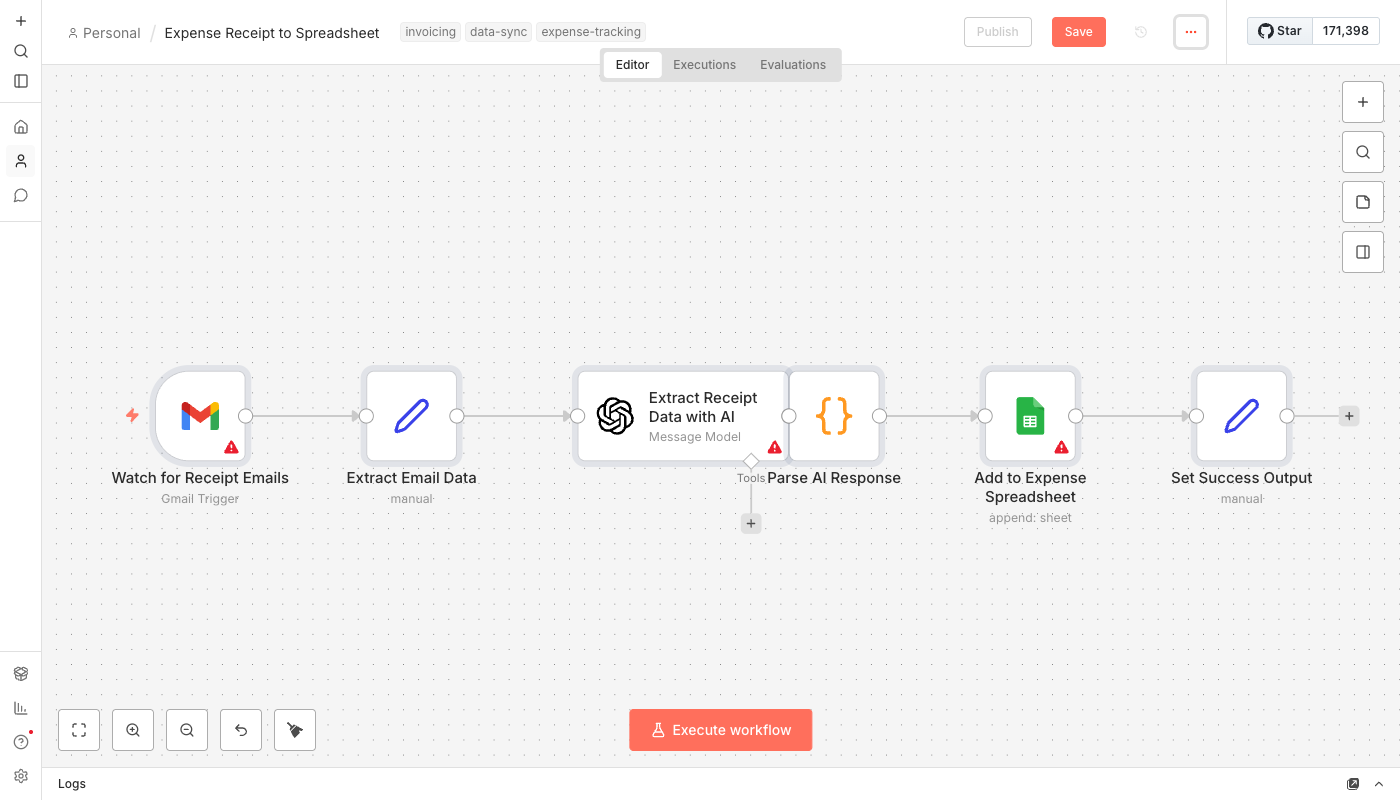
Simple 4-step flow:
- Forward a receipt email to your dedicated expenses address (or use filters to auto-forward)
- n8n grabs the email and sends the content to OpenAI
- AI extracts the key data: vendor, date, amount, category, payment method
- Data lands in your spreadsheet with a timestamp and source reference
The AI is surprisingly good at figuring out vendors even from confirmation emails. "Your order from Staples has shipped" becomes "Staples" in the vendor column.
What You'll Need
- n8n instance - Self-hosted (free) or n8n Cloud ($20/month)
- Gmail account - For receiving the forwarded receipts
- OpenAI API key - Costs about $0.001-0.005 per receipt (yes, fractions of a cent)
- Google Sheets - Where your expense log lives
The OpenAI costs are negligible. Even processing 500 receipts a month would cost under $3.
Your Spreadsheet Setup
Create a new Google Sheet with these columns:
- Date - When the purchase happened
- Vendor - Who you paid
- Amount - How much
- Currency - USD, EUR, etc.
- Category - Office Supplies, Travel, Meals, etc.
- Description - Brief note about the purchase
- Payment Method - Credit Card, PayPal, etc.
- Source Email - Where the receipt came from
- Has Receipt - Whether an attachment was included
- Logged At - When it was processed
The workflow creates these columns automatically if you start fresh. Or adapt it to match your existing expense tracking setup.
Setup Instructions
- Import the workflow - Download the JSON file and import into n8n
- Set up a dedicated email - Either create [email protected] or set up a Gmail filter that labels receipt emails
- Connect Gmail - Add your Google account credentials
- Connect OpenAI - Add your API key
- Connect Google Sheets - Create your expense spreadsheet and link it
- Update the Gmail filter - Edit the "to:[email protected]" to match your setup
- Test with a real receipt - Forward one and check if it appears in your spreadsheet
- Activate - Turn on the workflow and start forwarding
Pro tip: Set up email forwarding rules so receipts from common vendors (Amazon, Uber, etc.) automatically forward to your expense address.
Customization Ideas
Once the basics work:
- Auto-categorize by vendor - Add rules so "Shell" always becomes "Fuel" and "Zoom" always becomes "Software"
- Monthly summary email - Add a scheduled trigger that emails you a spending summary
- Flag large expenses - Get a Slack notification for anything over $500
- Multiple categories - Split by business vs. personal, or by project/client
- Currency conversion - Add a step to convert everything to USD
- Receipt attachment storage - Save PDFs to Google Drive with organized folders
What the AI Extracts
The AI is trained to pull out:
- Vendor name - Even from "[email protected]" it knows you bought from Amazon
- Date - Transaction date, not the email date
- Amount - Just the number, no symbols or commas
- Category - One of 10 common expense categories
- Description - A brief summary of what was purchased
- Payment method - When it can determine how you paid
When it can't figure something out, it flags the row for manual review rather than guessing wrong. You'll see "PARSE ERROR - Manual Review" in the vendor column for any receipts that need attention.
The Real Impact
I used to have a folder with 200+ receipts I'd "organize later." You know how that goes.
Now every receipt gets forwarded the moment it arrives in my inbox. Takes 2 seconds. By the time I need the data, it's already sitting in a clean spreadsheet with dates, amounts, and categories.
My accountant's reaction last tax season: "This is the most organized expense report I've ever received from you."
That's the goal. Not a productivity revolution. Just one less thing to dread when April rolls around.