
The Problem
You know that feeling. Customer walks in asking for your most popular item. You walk to the shelf. Empty.
"Oh, we're out of that. Let me check when we're getting more..."
Meanwhile, they're already pulling up Google Maps to find a competitor.
A gift shop owner in Morro Bay told me she was losing 3-4 sales a month to stockouts. Not because she didn't track inventory—she had a beautiful spreadsheet. She just never looked at it until someone asked for something that wasn't there.
"I knew we were getting low on those seashell candles," she said. "I just forgot to reorder."
Now her spreadsheet reminds her. Every morning at 9am, if anything's running low, she gets a Slack message. If everything's fine, silence. No spreadsheet spelunking required.
What This Does
- Checks your inventory daily at whatever time you set (default: 9am)
- Compares each item's quantity to its reorder threshold—you set these in your spreadsheet
- Identifies urgency levels: OUT OF STOCK (red), Critical (orange), and Low (yellow)
- Calculates how much to order based on your reorder quantity column
- Sends a Slack message with everything you need to order—if there's nothing low, you hear nothing
No more "oh no we're out." Just a morning message telling you what needs attention.
How It Works
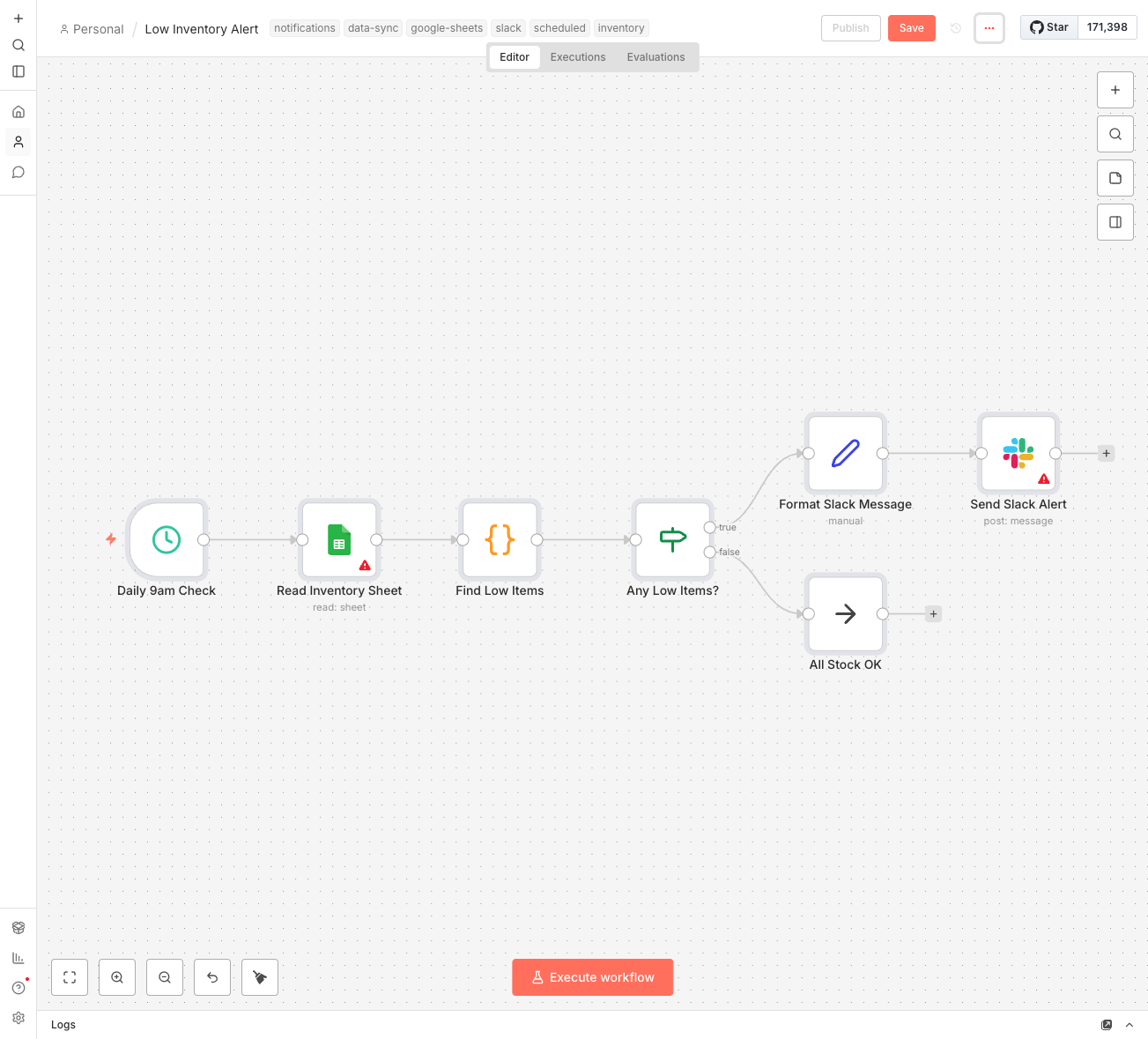
Simple five-step flow:
- Schedule trigger fires every morning at 9am (or hourly if you want more frequent checks)
- Google Sheets node reads your inventory—expects columns for Item, Quantity, Reorder At, and Reorder Qty
- Code node compares quantities to thresholds and builds a list of low items sorted by urgency
- IF condition checks if there are any low items at all—if not, workflow stops quietly
- Slack sends a formatted message with item names, current quantities, and how much to order
The message includes color-coded urgency levels so you know what to tackle first.
What You'll Need
Pretty minimal:
- n8n instance—Self-hosted (free) or n8n Cloud ($20/month)
- Google Sheets—Your inventory tracking spreadsheet
- Slack workspace—For receiving alerts (can swap for Gmail if you prefer email)
If you don't have an inventory spreadsheet yet, now's a good time to start. Even a simple one with Item, Quantity, and Reorder At columns will work.
Your Inventory Spreadsheet Format
The workflow is flexible with column names, but here's the ideal setup:
| Item | SKU | Quantity | Reorder_At | Reorder_Qty |
|---|---|---|---|---|
| Seashell Candle - Lavender | SC-LAV-001 | 8 | 10 | 24 |
| Morro Rock Postcard | PC-MR-001 | 45 | 25 | 100 |
| Local Honey - 8oz | HON-8OZ | 3 | 5 | 12 |
- Item: Product name (also accepts: Name, Product)
- SKU: Optional identifier
- Quantity: Current stock (also accepts: Current, Stock)
- Reorder_At: Alert when quantity drops to this level (also accepts: ReorderAt, Minimum)
- Reorder_Qty: How many to order (optional—if missing, calculates automatically)
Setup Instructions
- Prepare your inventory spreadsheet
- Make sure you have at least: Item, Quantity, Reorder_At columns
- Add Reorder_Qty if you want specific order amounts
- Note your spreadsheet ID (it's in the URL between /d/ and /edit)
- Import the workflow into your n8n instance
- Update the Google Sheets node
- Connect your Google account
- Paste your spreadsheet ID
- Update the sheet name if it's not "Inventory"
- Update the Slack node
- Connect your Slack workspace
- Select which channel should receive alerts
- Adjust the schedule if 9am doesn't work for you
- Test it—temporarily set a reorder threshold higher than your current quantity to trigger an alert
- Activate—turn it on and stop worrying about stockouts
Customization Ideas
Once it's working:
- Check hourly instead of daily—for high-volume businesses or time-sensitive inventory
- Email instead of Slack—swap the Slack node for Gmail
- Add supplier info—include a Supplier column and add it to the alert
- Multiple sheets—duplicate the workflow for different product categories or locations
- Auto-generate purchase orders—extend the workflow to create a Google Doc PO with low items
- Weekly summary—add a second workflow that sends weekly inventory overview regardless of levels
Email Alternative
Prefer email over Slack? Easy swap:
- Delete the "Format Slack Message" and "Send Slack Alert" nodes
- Add a Set node to format an HTML email (similar structure to the Slack message)
- Add a Gmail node to send the alert to yourself
The workflow JSON includes Slack by default because instant notifications work better for time-sensitive inventory issues, but email works fine if you check it regularly.
Real Impact
That gift shop owner in Morro Bay? Three weeks after setting this up, she caught a near-miss.
She got the morning alert: "3 items need reordering." One of them was her best-selling item—down to just 2 units. She'd completely forgotten to reorder after the last batch sold out.
Called her supplier that morning. New stock arrived two days later. She sold 4 of them that week.
Without the alert? "I probably would've noticed when someone asked for it and the shelf was empty. Again."
The automation cost her $0 (she self-hosts n8n). The stockout it prevented? Probably $200+ in lost sales.
Sometimes the best automation isn't about saving time. It's about catching the things you'd otherwise miss.