
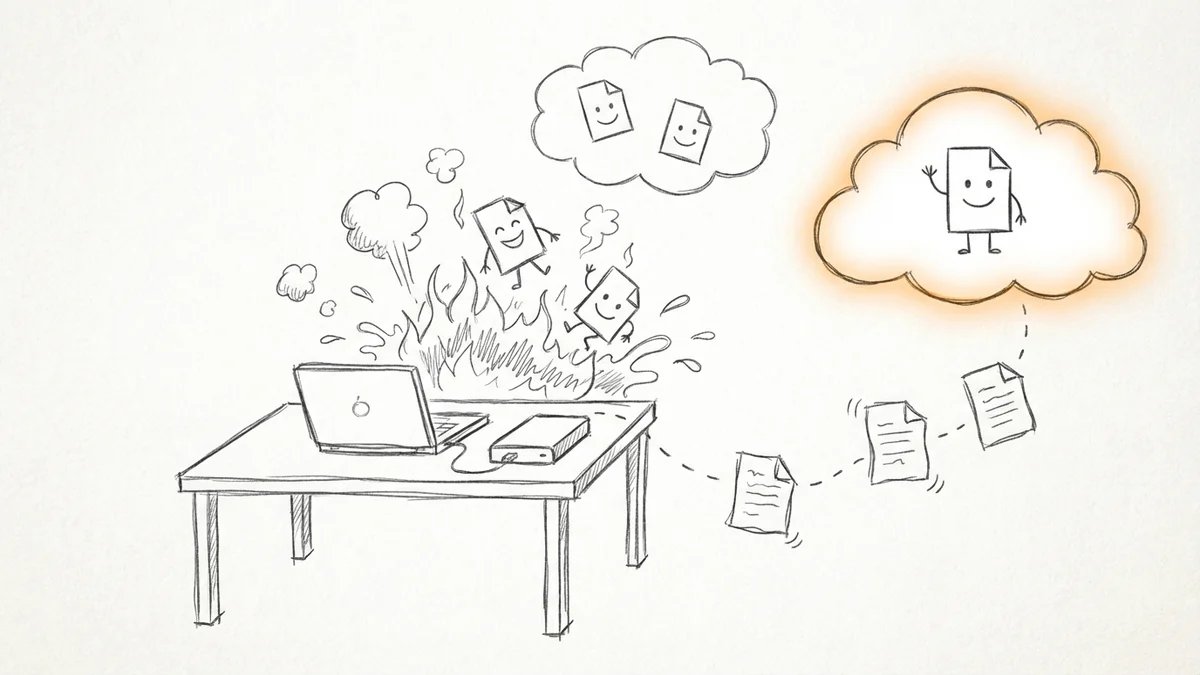

Backups are boring. I get it. Nobody wakes up excited to configure backup software. But here's the thing: 60% of businesses without backups close within 6 months of major data loss. Not "experience difficulties." Close. Permanently. So let's spend 30 minutes now to avoid being that statistic.
The Numbers That Should Scare You
I'm not usually one for fear-mongering, but these stats are genuinely alarming:
- 58% of small businesses are completely unprepared for data loss. More than half. No backup strategy at all.
- Only 42% of businesses that experience data loss recover ALL their data. The other 58%? Lost something forever.
- 75% of small businesses have no recovery plan. They're just hoping nothing goes wrong.
And it's not a matter of "if" you'll need a backup. 39% of organizations need to restore data from backups at least once a month. This isn't rare. It's routine.
Why Your Backups Might Fail When You Need Them
Here's the part that kept me up at night when I first learned it: having a backup isn't the same as having a backup that works.
The top reasons businesses need to restore data are:
- Backup software failure (54%)
- Hard drive failure (52%)
- Cyber attacks (49%)
Read that first one again. Backup software failure. More than half the time, the thing that's supposed to protect you is the thing that failed. That's why you need redundancy, not just a single backup.
Ransomware Now Targets Your Backups First
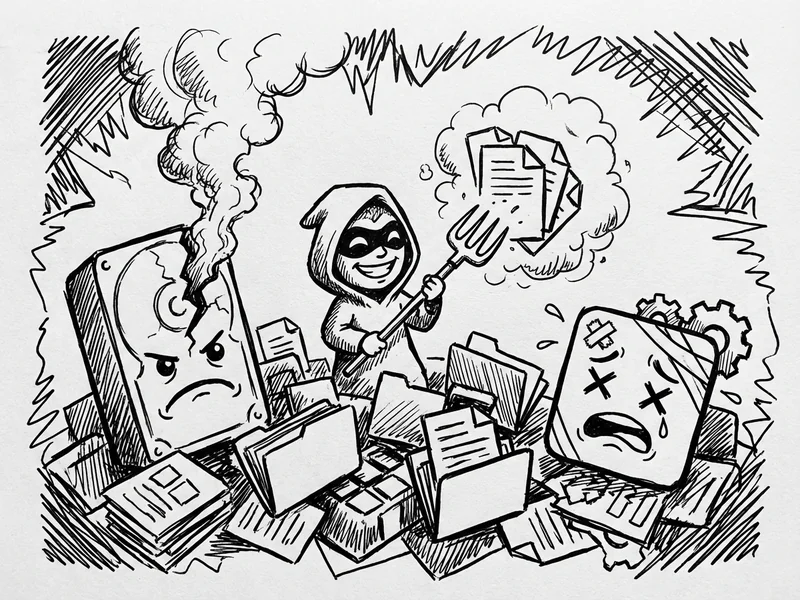
This one is particularly nasty. Modern ransomware doesn't just encrypt your files and demand payment. 96% of ransomware attacks now target backup systems first. The attackers know that if they can destroy your backups, you have no choice but to pay.
88% of SMB breaches involved ransomware last year, compared to just 39% at larger organizations. Small businesses are the primary target because we're less likely to have sophisticated defenses.
This is why the "just plug in an external drive" approach isn't enough anymore. If that drive is connected when ransomware hits, it gets encrypted too. (More on how to avoid this in a minute.)
The 3-2-1 Rule (It's Simpler Than It Sounds)
There's an old IT rule that still holds up: the 3-2-1 backup strategy.
- 3 copies of your data (the original + 2 backups)
- 2 different types of media (like your computer + an external drive + cloud)
- 1 copy offsite (somewhere physically different from your office)
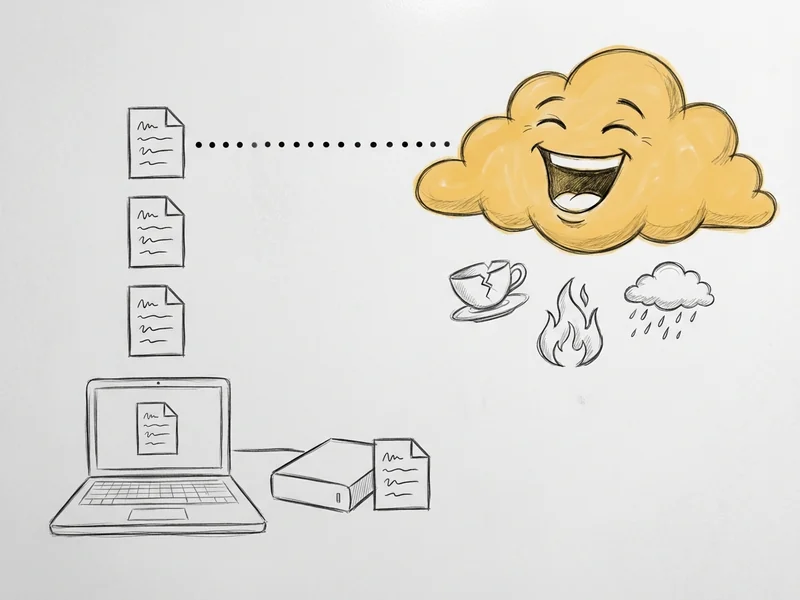
The logic is simple: any single backup can fail. Two backups can fail at the same time if they're in the same location (fire, flood, theft). But three copies, with one in a completely different place? That covers almost every disaster scenario.
Here's what that looks like in practice:
- Your working files (on your computer)
- A local backup (external drive or local server)
- A cloud backup (automatically synced to a data center far away)
My Exact Setup (What I Actually Use)
I promised specifics, so here's exactly what I run:
For my work computer:
- Time Machine to a local external drive (free, built into Mac)
- Backblaze for cloud backup ($99/year for unlimited storage)
For client websites:
- Daily automated backups through the hosting provider (included)
- Weekly manual backups to a separate cloud storage (redundancy)
- Database exports stored separately from files
For important documents:
- Google Drive for active working files (syncs automatically)
- Backblaze catches everything else
Total monthly cost: about $12 (Backblaze + a bit of extra cloud storage).
That's it. Not complicated. Not expensive. But it means if my laptop gets stolen, my office floods, or I accidentally delete something critical, I can recover.
Cloud Backup Options (What They Actually Cost)
Let me break down the main cloud backup services for small businesses:
Backblaze Personal
- $99/year ($8.25/month) for unlimited storage per computer
- Automatic, continuous backup - set it and forget it
- Can mail you a hard drive with your data if you need to restore a lot
- What I use for my Mac
iDrive
- Around $5 for the first year (promotional) (10TB)
- Backs up multiple computers to one account
- Good option if you have several machines
Google One
- $3/month for 200GB, $10/month for 2TB
- Integrates with Google Drive you might already use
- Simpler but less robust than dedicated backup services
For most small businesses with 1-3 computers, Backblaze is the easiest recommendation. It just works, the pricing is simple, and the restore process is straightforward.
The External Drive Part (Don't Skip This)
Cloud backup is essential, but it's not instant. If you accidentally delete a file, cloud backup will catch it. But if your hard drive dies and you need to restore 500GB of data? That'll take a while to download.
That's why a local backup matters. Here's what to get:
- Size: At least 2x your computer's storage. If you have a 500GB drive, get a 1TB external.
- Type: A regular USB external drive works fine. SSDs are faster but more expensive.
- Cost: About $50-80 for a 2TB drive. One-time purchase.
The ransomware problem: Remember how I said ransomware targets backups? Here's the fix - don't leave your external drive plugged in 24/7. Plug it in, run your backup (Time Machine, Windows Backup, whatever), then unplug it. A drive that's not connected can't be encrypted.
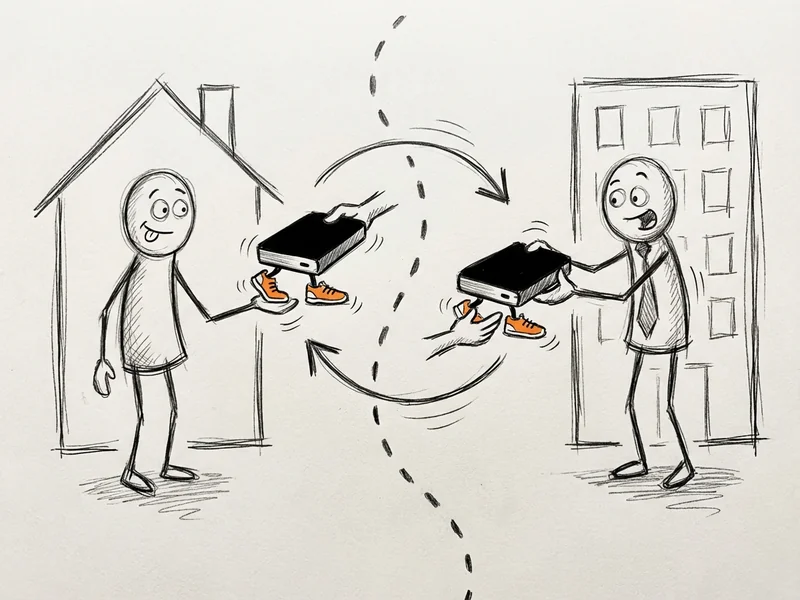
Some people keep two external drives and rotate them. One stays at home, one stays at the office. Swap them weekly. That way even if ransomware hits while one is connected, the other one is safe.
Website Backups (If You Have a Business Site)
Your website is a different beast from your personal files. Here's what to know:
If you're on managed hosting (like YouGrow):
- Backups should be included and automatic
- Ask your host: "How often do you back up my site? How long do you keep backups? Can I download a backup myself?"
- Good hosts keep 30+ days of backups
If you're on shared hosting or managing your own WordPress:
- Install a backup plugin (UpdraftPlus is free and solid)
- Configure it to back up to cloud storage (Google Drive, Dropbox, etc.) - not just the same server
- Test the restore process at least once. Seriously. A backup you can't restore is worthless.
What to back up:
- Your files (themes, plugins, uploads)
- Your database (all your content, settings, users)
- Both. Always both. A lot of people only back up files and forget the database, then lose all their blog posts.
The Test Nobody Does (But You Should)
Here's a dirty secret: most people set up backups and never test them. They just assume it's working. Then disaster hits and they discover the backup has been failing silently for six months.
Once a quarter, do this:
- Check your cloud backup service. Log in. Verify it says "last backup: today" or similar. If it says "last backup: 3 months ago," you have a problem.
- Restore a single file. Pick any file. Go through the restore process. Make sure you actually get a working file back.
- For websites: Download a full backup. If your host offers a "staging" environment, try restoring there. Or just download and verify you can see all the files and the database export isn't empty.
This takes 15 minutes. Do it quarterly. Or at minimum, once a year.
What About Cost of NOT Having Backups?
Let's do some quick math. Downtime costs small businesses an average of $1,410 per minute. Even if that number is high for your business, think about:
- How many hours would it take to recreate your customer database from memory?
- What would you lose if all your invoices and financial records disappeared?
- How much is a year of emails worth?
- What about photos, contracts, proposals you've spent years building?
Now compare that to $100/year for cloud backup and $60 for an external drive. The math isn't even close.
The 30-Minute Setup Checklist
Here's how to get properly backed up today:
Step 1: Cloud backup (10 minutes)
- Go to backblaze.com and create an account
- Download and install the app
- Let it run. Initial backup takes a while (maybe overnight), but after that it's continuous
Step 2: Local backup (10 minutes)
- If you don't have an external drive, order one today (2TB is fine, $50-80)
- On Mac: plug it in, say yes to "Use for Time Machine"
- On Windows: Settings > Update & Security > Backup > Add a drive
- Let it run, then unplug the drive when done
Step 3: Test it (10 minutes)
- Wait 24 hours for initial cloud backup to process some files
- Log into Backblaze (or whatever you chose)
- Find a file and restore it
- Verify it works
That's it. You're now better protected than 58% of small businesses.
The Bottom Line
Backups are the most boring, most important thing you can set up for your business. They're cheap. They're mostly automatic once configured. And they're the difference between "my laptop got stolen but I'm fine" and "I just lost 5 years of work."
$12/month. 30 minutes to set up. Do it this week.
How I Handle This for YouGrow Clients
If you're a YouGrow client, your website backups are already handled. Daily automated backups, 30-day retention, and I can restore your site to any point in that window. It's part of what you're paying for.
For your personal/business computer backups, I'm happy to walk you through setting up Backblaze or a similar service on a call. Takes about 15 minutes.
Not a client but have questions about backup strategy? Drop me a line. This is one of those areas where a little guidance can save you a lot of pain later. And if you're worried about keeping your passwords secure or avoiding phishing scams, those are good next steps once your backups are sorted.