
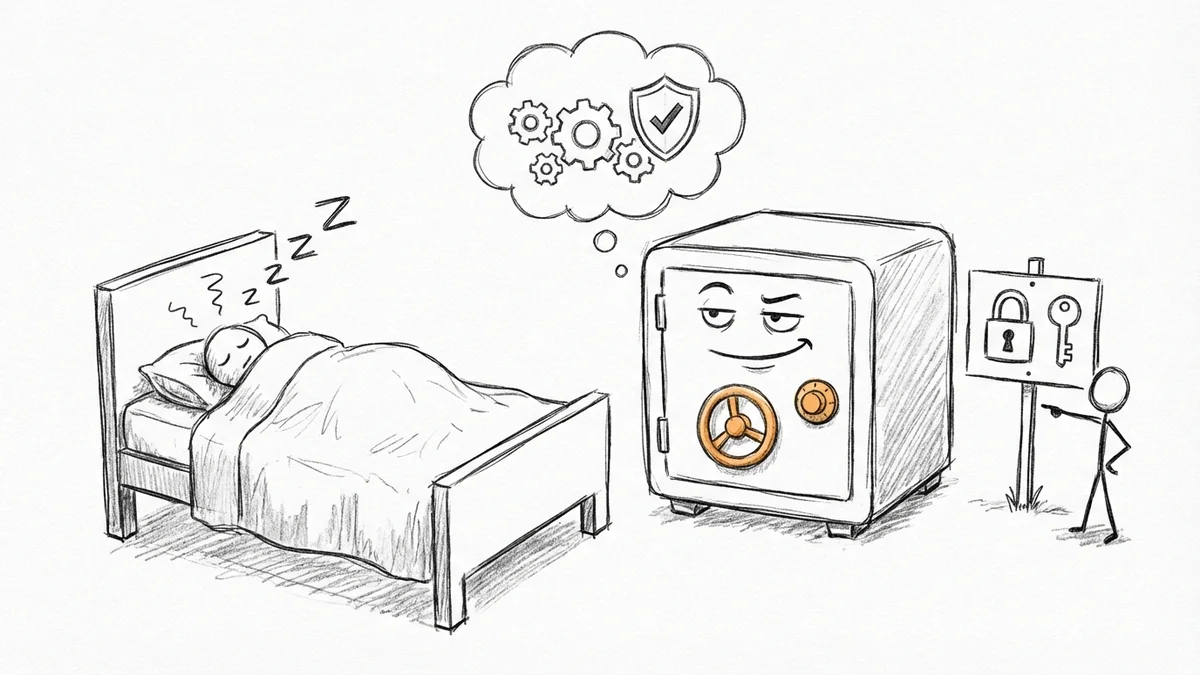

Look, I get it. You've been meaning to set up a password manager for years. Every time there's a news story about another breach, you think "I should really do that." Then you get busy and forget. Here's the thing: over 80% of hacking-related breaches involve stolen or weak passwords. This isn't a "nice to have" anymore. But the good news is it takes about 30 minutes to set up properly.
Why Small Businesses Get Hit Hardest
Here's a stat that should concern you: small businesses have the highest rate of compromised passwords at 3.4% - higher than midsize companies (1.9%) and even higher than big enterprises (2.9%).
Why? Because big companies have IT departments that force everyone to use password managers. Small businesses... don't. So employees use the same password everywhere, write them on sticky notes, or store them in a text file called "passwords.txt" on their desktop. (I've seen all of these.)
The math is simple: about 84% of people reuse passwords. When LinkedIn gets breached (it did), that same email/password combo gets tried on your bank, your email, your everything. If your employee uses the same password for their personal Netflix and your business bank account... you see the problem. (And with AI-powered phishing attacks getting smarter, weak passwords are just one piece of the security puzzle.)
What a Password Manager Actually Does
Think of it like a secure vault that only you can open. Inside that vault are all your passwords - but here's the important part: each password is different, randomly generated, and impossible for humans to remember. It's secure, encrypted, and not sitting in a sketchy motel of shared hosting.
You remember one password (your "master password"). The manager remembers everything else. When you go to log into something, it fills in the password for you. No more "forgot password" emails. No more reusing the same password because you can't remember 47 different ones.
People who use password managers are about half as likely to have their identity stolen (17% vs 32%). That's not nothing.
Bitwarden vs 1Password: The Quick Version
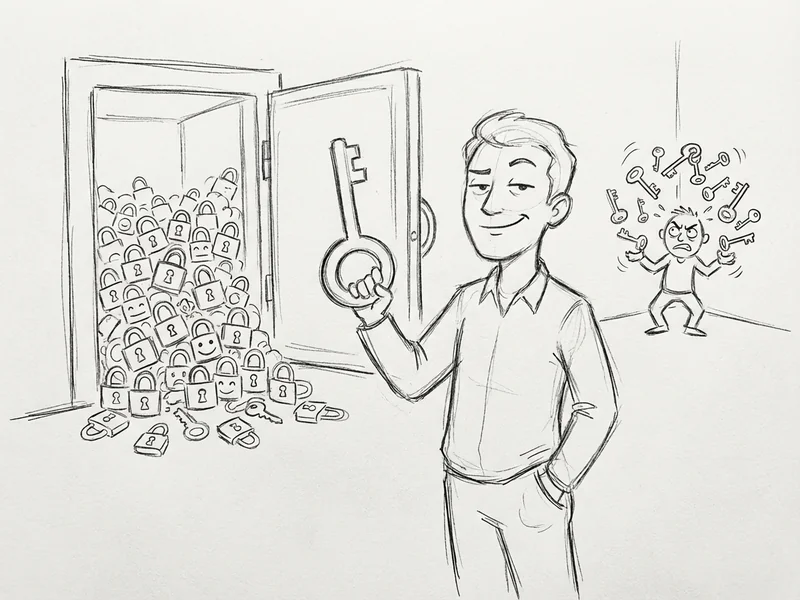
For small businesses (1-5 employees), there are really two good options: Bitwarden and 1Password. Both work great. Here's the honest breakdown:
Bitwarden
- $20/month for up to 10 users (Teams Starter)
- Open source - you can see exactly how it works
- Has a free tier for personal use (great for testing)
- Interface is functional but not as polished
- Self-hosting option if you're paranoid (most people aren't)
1Password
- $19.95/month for up to 10 users (Teams Starter Pack)
- Prettier interface, slightly easier to use
- No free tier (14-day trial only)
- Better family sharing features
- Includes a free Families plan for each team member's personal use
My take: For pure value, Bitwarden wins - nearly identical features, slightly cheaper, and you can test it free first. For ease of use and polish, 1Password wins. Both are significantly better than "password123" written on a sticky note.
The 30-Minute Setup (Using Bitwarden as Example)
I'm using Bitwarden for this walkthrough because you can try it free. The 1Password process is nearly identical.
Step 1: Create your organization (5 minutes)
- Go to vault.bitwarden.com and create a personal account first
- Use a strong master password - this is the ONE password you need to remember. Make it long (4+ random words work great: "correct-horse-battery-staple" style)
- Write down your master password and store it somewhere safe (NOT on your computer). A fireproof safe at home works.
- Once logged in, click "New Organization" to create your business vault
- Name it your business name and pick the Teams Starter plan (you can upgrade later)
Step 2: Install the apps (5 minutes)
- Install the browser extension (Chrome, Firefox, Safari, Edge - whatever you use)
- Install the desktop app (optional but useful)
- Install the mobile app on your phone
- Log into all of them with your master password
The browser extension is the important one. That's what auto-fills your passwords when you're logging into stuff.
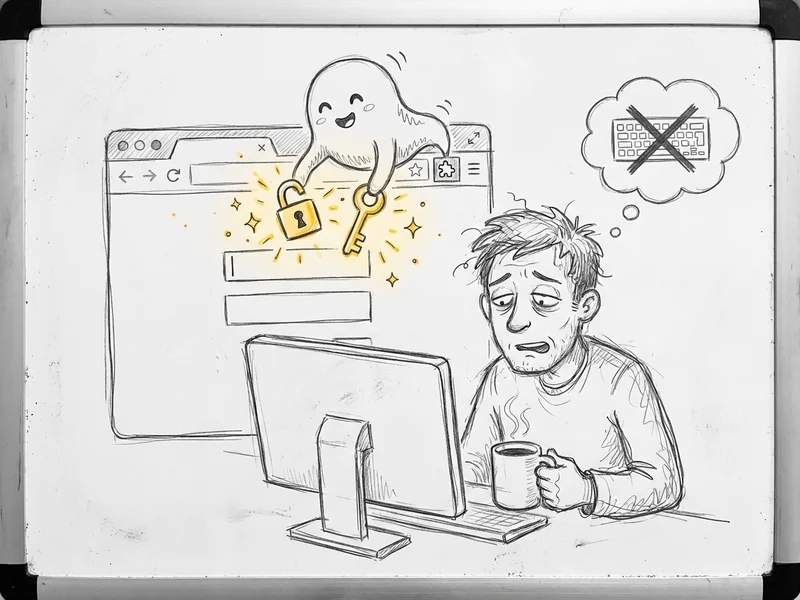
Step 3: Import your existing passwords (10 minutes)
Good news: your browser has been saving passwords this whole time. Bad news: that's not secure. Let's move them.
- Export from Chrome: Settings > Passwords > Three dots > Export passwords (saves a CSV file)
- Export from Firefox: Settings > Privacy & Security > Logins and Passwords > Three dots > Export Logins
- In Bitwarden: Tools > Import Data > Select your browser > Upload the CSV
- Delete the CSV file from your computer (it has all your passwords in plain text)
- Go back to Chrome/Firefox and turn OFF built-in password saving - you don't need it anymore
Now all your passwords are in one secure place.
Step 4: Invite your team (5 minutes)
- In Bitwarden, go to your Organization > Members > Invite User
- Enter their email address
- They'll get an email to create their own Bitwarden account and join
- Once they accept, assign them to the appropriate "Collection" (like a shared folder)
Pro tip: Create collections by category - "Marketing Logins," "Financial," "Client Portals" - so people only see what they need.
Step 5: Set up emergency access (5 minutes)
This is the part people skip but shouldn't. What if you get hit by a bus?
- Settings > Emergency Access > Add Emergency Contact
- Pick someone you trust (business partner, spouse, accountant)
- Set a waiting period (I use 7 days) - they request access, and if you don't deny it within that time, they get in
- They create their own Bitwarden account and accept your invitation
Now if something happens to you, your business doesn't lose access to everything.
Getting Employees to Actually Use It
Here's the hard part: you can set up the perfect system and people will still try to use "Password1!" for everything. A few things that help:
1. Make it easier than the old way
The browser extension auto-fills. That's LESS work than typing a password. Emphasize this. "You don't have to remember anything anymore" is a selling point.
2. Do a "password audit" together
Bitwarden has a "Reports" section that shows weak and reused passwords. Pull it up in a team meeting. "Hey, looks like we have 12 accounts using the same password. Let's fix those today." No shame, just fix it.
3. Lead by example
If you're still typing in passwords manually, why would your team use the manager? Use it for everything, visibly, in front of people.
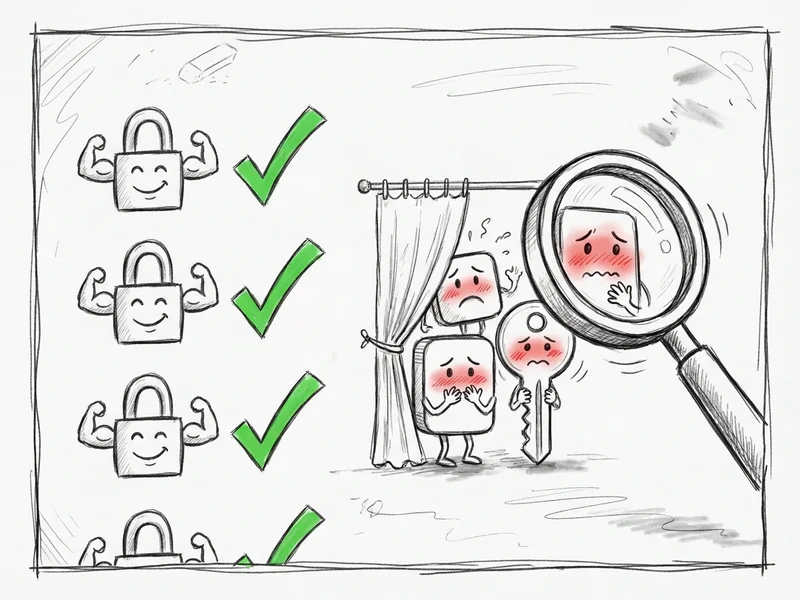
The Passwords You Should Change First
Once you're set up, don't try to change all 200 passwords at once. Prioritize:
- Email - If someone gets your email, they can reset everything else
- Banking and financial - For obvious reasons
- Domain registrar - They could redirect your website
- Cloud storage (Google Drive, Dropbox) - That's where your files live
- Social media with business pages - Reputational damage is real
For each one: open the site, go to settings, change password, let Bitwarden generate a random one (use 20+ characters), save it. Repeat. You can knock out the critical ones in 15 minutes.
But What About Two-Factor Authentication?
Password manager + two-factor authentication (2FA) is the gold standard. A password manager handles the "something you know" part. 2FA adds "something you have" (usually your phone).
Most password managers can store 2FA codes too - but I actually recommend keeping them separate. Use an authenticator app (Google Authenticator, Authy, or Microsoft Authenticator) for 2FA codes. That way, if someone somehow gets into your password manager, they still can't get into accounts that require 2FA.
Enable 2FA on everything that supports it, especially email, banking, and your password manager itself.
The One Password You Need to Get Right
Your master password is the keys to everything. A few rules:
- Make it long - 4+ random words beats a short complex password ("purple-elephant-bicycle-sunset" is better than "P@ssw0rd!")
- Don't use it anywhere else - This is the ONE password that never gets reused
- Write it down and store it safely - A fireproof safe, a safe deposit box, somewhere physical and secure
- Never type it on a computer you don't control - No public computers, no borrowed laptops
If you forget this password and don't have it written down, you're locked out of everything. That's the tradeoff for security.
What This Actually Costs
Let's do the math for a 5-person team:
- Bitwarden Teams Starter: $20/month = $240/year
- 1Password Teams Starter: $19.95/month = $239/year
For context: 1 in 4 people have had at least one account compromised due to weak passwords. The average small business data breach costs tens of thousands in direct costs, plus the time spent cleaning up the mess.
$240/year to dramatically reduce that risk? That's a rounding error in your budget.
The Bottom Line
The most common password is still "123456" - used over 4.5 million times. If that sounds ridiculous, remember that someone on your team might be doing the same thing with a slight variation.
30 minutes of setup. $20/month. One master password to remember. The alternative is hoping you don't get breached, which isn't a strategy.
Pick Bitwarden or 1Password - honestly, either one is fine. Just pick one and set it up this week. Future you will be grateful.
Need Help Getting Set Up?
If you're a YouGrow client, I can walk you through this setup in about 15 minutes on a call. We'll get your organization created, your team invited, and your critical passwords migrated.
Even if you're not a client, feel free to reach out if you get stuck. This is one of those things that seems complicated until someone shows you once. Learn more about me and how I work.