
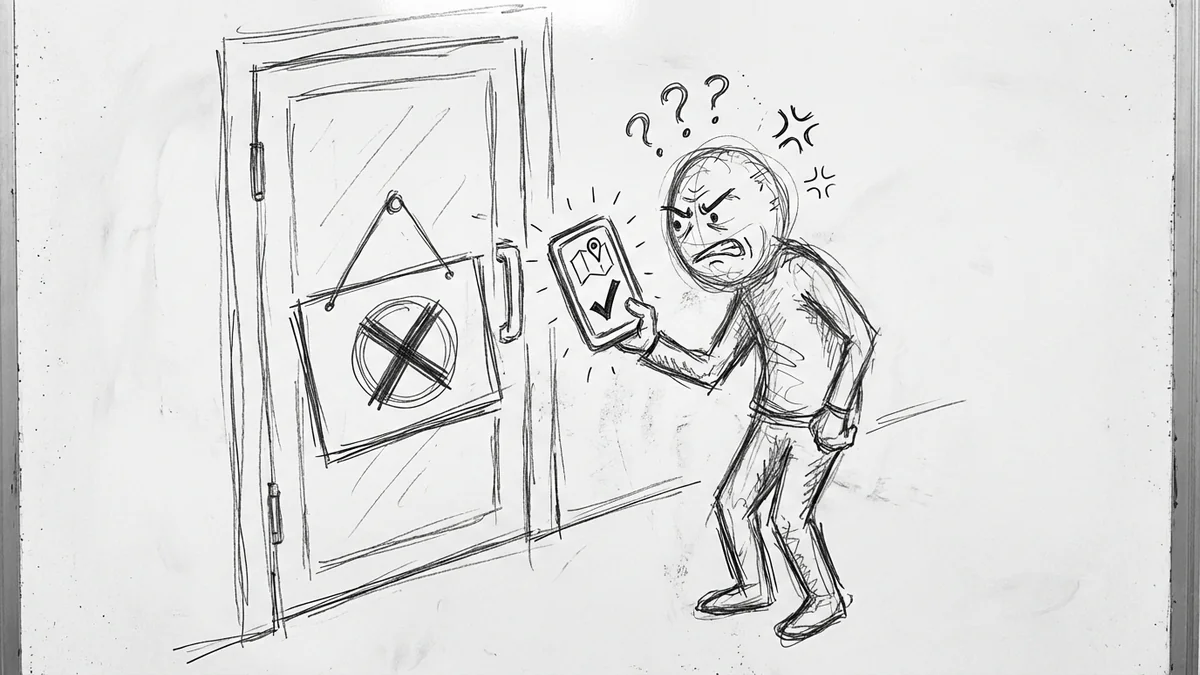

Here's a fun one: 44% of U.S. consumers have shown up at a business only to find the hours listed on Google were wrong. That's nearly half of everyone searching for you online.
And of those people who drove across town to find a locked door? 73% say they're unlikely to come back. Not because your product is bad. Not because your service is lacking. Because Google said you were open when you weren't.
That's a brutal way to lose a customer you never even met.
Why Your Hours Are Probably Wrong (Even If You Set Them Correctly)
So here's the thing most business owners don't realize: your Google Business Profile hours aren't just yours. Google pulls information from multiple sources and tries to figure out the "truth." Which sounds smart until you realize what those sources are:
- Other websites listing your business (Yelp, Yellow Pages, industry directories)
- Random users who click "suggest an edit"
- Google's AI comparing you to similar businesses nearby
- Street View photos showing your door signage
That last one is wild. Google uses machine learning to read the hours sign on your door from Street View images and may override what you entered if they don't match. (If you're still using that old Google Business Profile website that got shut down, here's how to fix that.)
And the "suggest an edit" feature? Anyone with a Google account can propose changes to your listing. Competitors. Bored teenagers. Someone who showed up at 5:01 when you close at 5:00. Google may auto-accept these suggestions without even telling you.

The "Suggest an Edit" Problem Is Real
This deserves its own section because it drives local business owners absolutely crazy.
Here's how it works: someone searches for your business, sees your listing, and clicks "Suggest an edit." They can change your name, address, phone number, categories, and yes—your hours. Google weighs the credibility of these suggestions based on factors like:
- How many other sites show the same information
- Whether the suggester is a "Local Guide" (power users who Google trusts more)
- How recently you've verified your own information
If your listing has been sitting untouched for six months and a Local Guide says your Friday hours are different, Google might just believe them over you.
The fix? Regular verification. More on that in a minute.

How to Check If Your Hours Are Right (Right Now)
Before we fix anything, let's see what's actually showing:
- Google your business name on your phone (not logged into your account)
- Look at the hours that appear in the Knowledge Panel on the right
- Check for the phrase "Hours confirmed by business" underneath
If "hours confirmed by business" is missing, that's a red flag. It means Google isn't confident in your data—and might be showing hours from other sources.
Also check Google Maps separately. Search for your business and tap to see the full listing. Sometimes Search and Maps show different information while syncing.
How to Actually Fix Your Hours (Step by Step)
Okay, your hours are wrong. Here's how to fix them:
1. Log Into Your Google Business Profile
Go to business.google.com or just Google your business name while logged into the Google account that manages your listing. You'll see an "Edit profile" option.
2. Go to Hours
Click "Edit profile" then select the "Hours" tab near the top.
3. Set Your Regular Hours
For each day of the week, set when you open and close. If you have a lunch break or split hours (open 9-12, closed 12-1, open 1-5), you can add multiple time ranges.
4. Hit Save
Then wait. Changes can take anywhere from a few minutes to a few days to propagate across Google's systems.
5. Verify It Stuck
This is the step everyone skips. After a day or two, search for your business again (logged out, incognito mode) and confirm the new hours are showing. If they reverted, you've got a consistency problem across the web—more on that below.
The Holiday Hours Trap (And How to Avoid It)
Here's where businesses really shoot themselves in the foot: holidays.
Google shows a warning on your listing if you haven't confirmed your holiday hours. Something like "Hours might differ" or "These hours might not be accurate." 52% of consumers say they're not confident visiting a business when they see that message.
More than half your potential customers might skip you entirely because you didn't spend 30 seconds confirming you're open on Memorial Day.
How to Set Holiday/Special Hours
Google calls these "Special Hours" and here's how to set them:
- In your Business Profile, go to "Edit profile" → "Hours"
- Look for "Special hours" and click the edit icon
- Google will suggest upcoming holidays—click "Review" to confirm or adjust
- For custom dates (early closure for a private event, etc.), click "Add a date"
- Set whether you're open, closed, or have modified hours that day
- Save
The magic phrase to remember: "Confirm your hours even if they're the same as usual." Google wants you to explicitly say "Yes, I'm open regular hours on July 4th" rather than assuming silence means no change.
Why Your Changes Keep Getting Overridden
If you keep setting your hours and they keep reverting, you've got a consistency problem. Here's what's happening:
Google compares your Business Profile data against other sources across the web. If three directories say you close at 6pm and you say you close at 5pm, Google might decide the crowd is right.
The fix is tedious but necessary:
- Audit your citations—everywhere your business is listed (Yelp, Yellow Pages, Facebook, industry directories, your own website)
- Update ALL of them to match your actual hours
- Wait a few weeks for Google to recrawl those sites
- Then update your Google Business Profile again
This is a pain. But if your hours are inconsistent across the web, you're fighting a losing battle with Google's algorithms.
If you've done a deep dive into local SEO, you know that NAP consistency (Name, Address, Phone—and hours) is fundamental to ranking well in local search anyway.
How to Stop Random People From Changing Your Listing
You can't completely prevent "suggest an edit" attacks, but you can make them less likely to succeed:
1. Verify Your Business
If you haven't gone through Google's verification process (usually a postcard or phone call), do it. Verified businesses have more authority over their own listings.
2. Keep Your Profile Active
Post updates, respond to reviews, add photos. Google gives more weight to active business owners than to random internet strangers. If your profile looks abandoned, Google is more likely to trust outside sources.
3. Turn On Notifications
In your Business Profile settings, make sure you're getting email alerts when someone suggests an edit. You'll have a chance to reject changes before they go live.
4. Check Weekly
Set a calendar reminder. Every Monday, Google your business and make sure nothing looks off. Catching changes early is easier than fixing damage after weeks of showing wrong info.
The "More Hours" Feature Most Businesses Miss
Beyond regular hours and special hours, Google has a third category: "More hours." This lets you set hours for specific services like:
- Delivery hours
- Pickup hours
- Drive-through hours
- Kitchen hours
- Senior hours
- Happy hour
If your kitchen closes at 9pm but your bar stays open until midnight, you can specify both. If you offer delivery only during certain windows, set it here.
These granular options help customers know exactly what's available when—which matters more than ever with 47% of consumers saying they'd immediately search for a competitor if they showed up and you weren't offering what they expected.
The Real Cost of Wrong Hours
Let's put some perspective on this:
- 62% of consumers say they'd avoid a business with incorrect details like hours or address
- 53% say inaccurate listings drive them away entirely
- And remember—73% won't come back after a bad first experience
If you're getting 1,000 searches a month and your hours are wrong, you might be losing hundreds of potential customers before they ever walk through your door. Not because of anything you did—just because Google showed the wrong time. And remember, 40% of appointments get booked after hours—so if someone can't trust your listed hours, they're moving on to the next option.
The upside? This is fixable in about 10 minutes. And unlike most marketing problems, the solution is free.

Quick Checklist: Hours Audit
Here's your action list:
- Today: Google yourself (logged out). Are your hours correct?
- Today: Check for "hours confirmed by business" on your listing
- This week: Log in and set special hours for the next 3 upcoming holidays
- This week: Check Yelp, Facebook, and your website—do they all match?
- Ongoing: Weekly spot-check. Set a calendar reminder.
If you're running into issues where your changes won't stick, or you suspect someone's messing with your listing, it might be time to dig deeper into your overall local SEO situation.
The Bottom Line
Your business hours on Google aren't just a detail—they're a promise. When a customer checks if you're open and drives over based on what they see, that's trust. Break that trust once, and you might not get a second chance.
The good news: keeping your hours accurate takes maybe 10 minutes a week. Log in, confirm your regular hours, set your holiday hours, and check that nothing weird has happened since last time.
It's one of those boring maintenance tasks that doesn't feel urgent until someone shows up to a locked door and leaves you a one-star review about it. Don't let that be your first warning sign.
Got questions about your Google Business Profile or local search presence? Give me a call—I'm happy to point you in the right direction.