
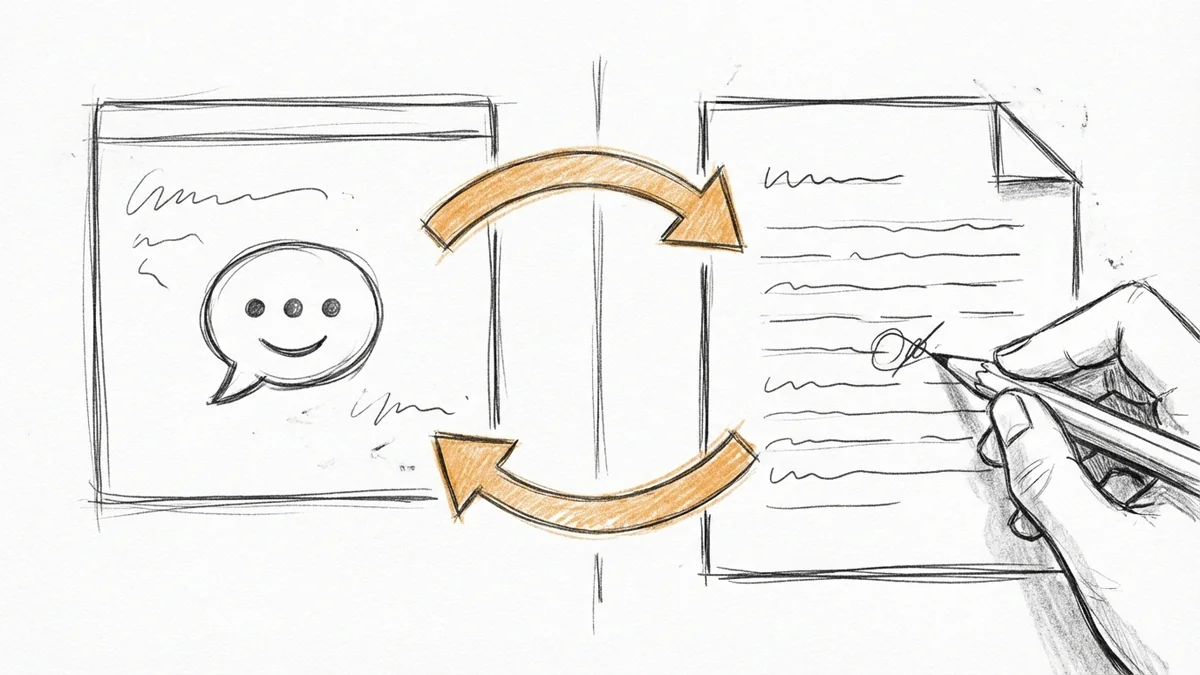

So here's the thing about using ChatGPT for writing: the back-and-forth gets old fast.
"Write me an email to a client." ChatGPT writes it. Too long. "Make it shorter." It rewrites the whole thing. Now it sounds robotic. "Keep the friendly tone from before but shorter." It guesses. Wrong. And around we go.
OpenAI finally did something about this. They launched Canvas on October 3, 2024—a side-by-side editing workspace where you and ChatGPT can actually work on the same document together. It's the first major update to ChatGPT's interface since the thing launched two years ago.
Think Google Docs, but your co-author is AI. And honestly? It's pretty useful.
What Canvas Actually Does
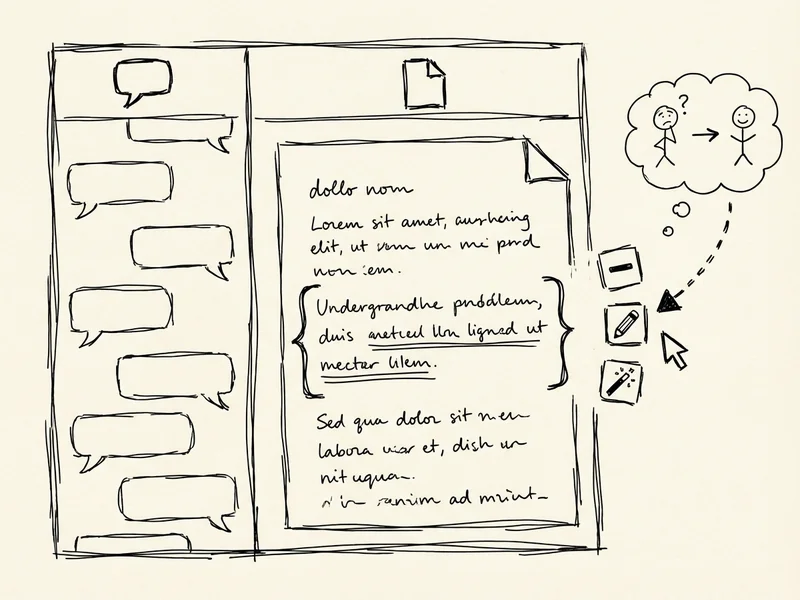
Instead of everything happening in a chat window, Canvas opens a separate panel where your document or code lives. Chat on the left, your project on the right.
Here's what makes it different:
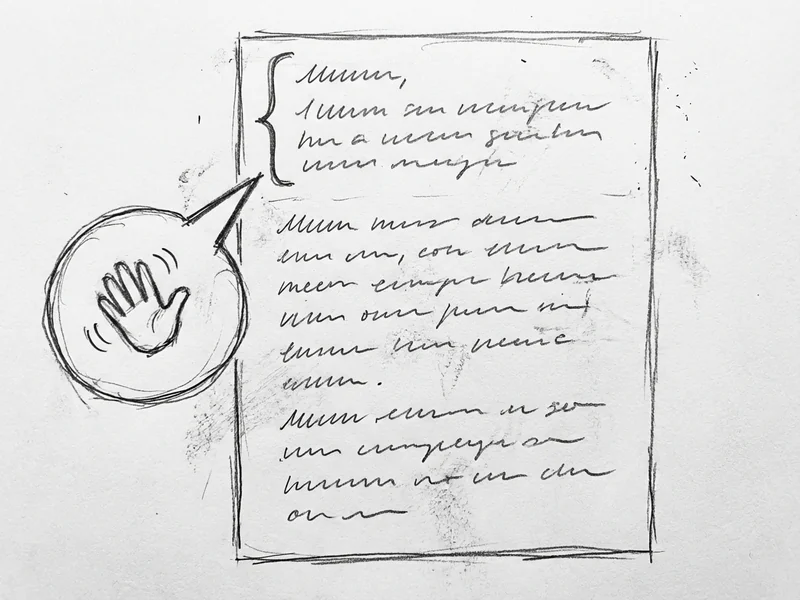
You can highlight specific parts. Instead of saying "make paragraph three less formal," you just highlight paragraph three and tell ChatGPT what you want. It only changes that part. Revolutionary? No. But surprisingly helpful when you're polishing something.
You can edit directly. Don't like a word? Just change it yourself. No need to explain to the AI what you want different—you're both looking at the same document.
Version history exists. Made it worse? Hit the back button. Your previous version is still there.
The Shortcuts Are Actually Smart
Canvas comes with one-click shortcuts for common tasks. For writing:
- Adjust length – Slider to make it shorter or longer. No more "make this more concise" back-and-forth.
- Change reading level – Goes from kindergarten to graduate school. Handy if you're writing for different audiences.
- Suggest edits – ChatGPT gives you tracked-changes style suggestions you can accept or reject.
- Final polish – Catches grammar, clarity issues, and weird phrasing.
- Add comments – Explains what your code does (useful when you come back to it in three months)
- Add logs – Throws in print statements for debugging
- Review code – Gets inline suggestions like a code reviewer
- Fix bugs – Tries to spot and fix what's broken
- Port to another language – Translates between JavaScript, Python, Java, C++, PHP, and TypeScript
A Real Example: Drafting a Client Email
Here's something I tried last week. Had to write an email to a potential client—someone who reached out about website work. First draft from ChatGPT was fine but too formal. Sounded like a form letter.
In the old way, I'd have typed "make it sound more casual and friendly" and gotten a completely new email that probably lost the key information I wanted to keep.
With Canvas, I highlighted the opening paragraph and typed "make this sound friendlier, like I'm talking to a neighbor." Just that paragraph changed. The rest stayed the same.
Then I used the length slider to trim the whole thing by about 20%. Done in maybe two minutes.
Is this magic? No. But it's the difference between fighting the tool and working with it.
When It Opens (And When It Doesn't)
Canvas pops up automatically when ChatGPT thinks it would help—usually for longer writing projects or code. You can also just type "use canvas" if you want it on demand.
For quick questions or short responses, it stays in regular chat mode. Makes sense—you don't need a whole workspace to ask "what's the capital of Montana."
Pro tip: If you're working on something important, start with "use canvas" in your prompt. Gets you into the editing workspace from the start instead of having to convert later.
Who Can Use It
Good news: Canvas is now available to everyone, including free ChatGPT accounts. OpenAI rolled it out to paying users first (Plus, Team, Enterprise), but as of December 2024, anyone can use it. (If you haven’t tried the free tier yet, here’s what you actually get.)
No special setup needed. Just start a conversation that involves writing or coding, and it should appear. Or ask for it directly.
What This Doesn't Fix
Let me be real about limitations:
ChatGPT still makes stuff up sometimes. Canvas doesn't solve hallucination. If you're writing something factual—like a blog post with statistics—you still need to verify everything it produces.
It's not Google Docs. You can't share a Canvas document with someone else, collaborate in real-time with multiple people, or access it from different devices. It's a single-session workspace.
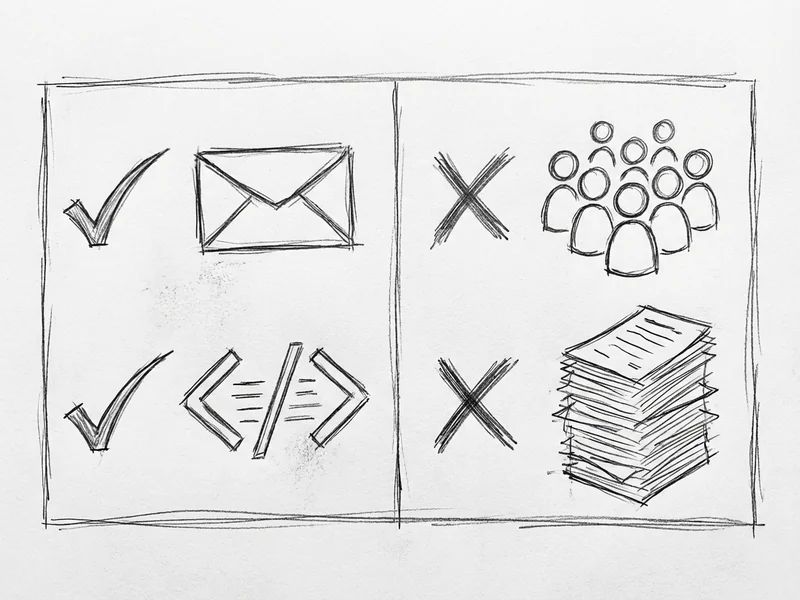
Complex documents get messy. Long reports with lots of sections? The AI sometimes loses track of what you're trying to do. Works best for shorter, focused pieces—emails, individual code files, brief articles.
Your edits don't teach it. If you fix the same mistake three times, it doesn't learn. Next conversation, same mistake.
Bottom Line: Worth Using
Canvas isn't revolutionary. It's more like... finally sensible? The old ChatGPT interface was designed for quick questions, not collaborative work. Canvas recognizes that people actually want to build things with AI, not just ask it questions.
If you use ChatGPT for writing emails, drafting content, or working on code, try Canvas. The side-by-side editing and targeted changes alone will save you the "no, not like that, like THIS" frustration.
And if you've been bouncing between ChatGPT and a separate document—writing something, copying it out, editing it, pasting it back—Canvas eliminates that whole dance.
It's not perfect. But it's AI that edits with you, not at you. That's progress. (Curious how Claude handles this? I wrote about Claude’s Artifacts—a similar side-by-side approach from Anthropic.)
What YouGrow Does Differently
Tools like Canvas are great for drafting and iterating. I use them all the time for first passes on copy, brainstorming, and code prototypes. But the final product you get from YouGrow isn't AI output with some human polish.
It's custom work—designed for your specific business, optimized for your actual customers, and built to convert. AI speeds up the process. It doesn't replace the thinking.
If you're curious how a website could work harder for your business, let's talk. No AI will be doing the talking—just me.