


I wrote this script for a client who runs a small online shop. She was spending about 2 hours every week typing out personalized thank-you emails after each order. Same format. Different name. Different amount. Over and over.
She stopped doing that the day I showed her this script. Copy-paste it into Google Sheets, and the thank-you emails send themselves.
Here's the thing: employees spend about 6.4 hours per week on email. A chunk of that is repetitive messages—order confirmations, appointment reminders, follow-ups. If the information already lives in a spreadsheet, why are you typing it again?
The 10-Line Script
This is the actual script. Copy it. You can tweak the message later.
function sendThankYouEmails() {
  var sheet = SpreadsheetApp.getActiveSheet();
  var data = sheet.getDataRange().getValues();

  for (var i = 1; i < data.length; i++) {
    var row = data[i];
    var email = row[0];  // Column A: email
    var name = row[1];   // Column B: name
    var amount = row[2]; // Column C: amount
    var sent = row[3];   // Column D: sent status

    if (email && !sent) {
      var subject = "Thank you for your order, " + name + "!";
      var body = "Hi " + name + ",\n\n" +
                 "Thanks for your purchase of $" + amount + ". " +
                 "We really appreciate your business.\n\n" +
                 "Let us know if you have any questions!\n\n" +
                 "Best,\nYour Company Name";

      MailApp.sendEmail(email, subject, body);
      sheet.getRange(i + 1, 4).setValue("SENT");
    }
  }
}
Okay, technically that's more than 10 lines. But the actual logic? Maybe 10 lines if you're being generous. The rest is just formatting the email nicely.
How to Set It Up
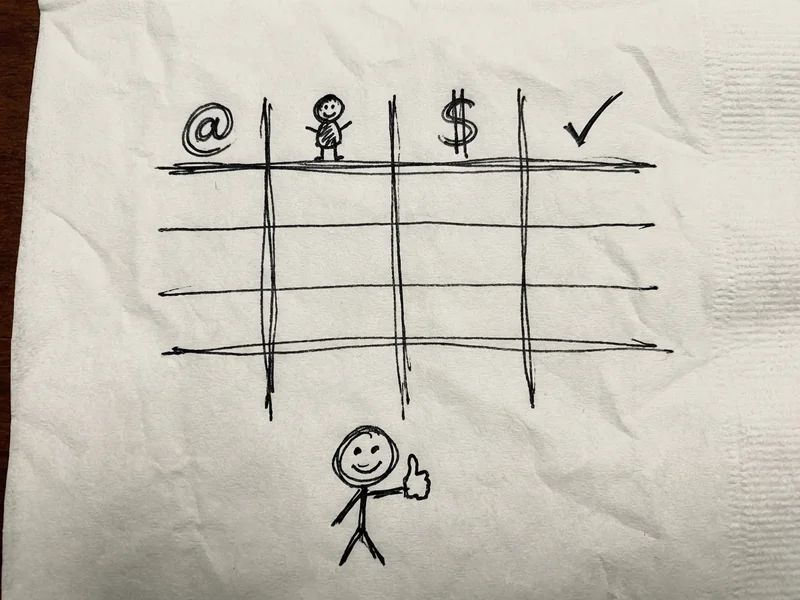
You need a Google Sheet with four columns:
- Column A: Customer email
- Column B: Customer name
- Column C: Purchase amount
- Column D: Sent status (leave blank)
Then:
- Open your Google Sheet
- Click Extensions > Apps Script
- Delete whatever's in there and paste the script above
- Click the disk icon to save
- Click Run
- Google will ask for permission to send emails on your behalf. Click through the warnings (it's your own script, it's fine)
The script looks at each row. If there's an email address and the "sent" column is empty, it sends the thank-you email and marks it "SENT" so it doesn't send twice.
Customizing the Email
The message in the script is pretty generic. Here's where you make it yours.
Find this part:
var body = "Hi " + name + ",\n\n" +
           "Thanks for your purchase of $" + amount + ". " +
           "We really appreciate your business.\n\n" +
           "Let us know if you have any questions!\n\n" +
           "Best,\nYour Company Name";
Change it to whatever you actually want to say. The \n creates a new line. The + name + parts pull data from your spreadsheet.
Want to add the product name? Add a column E for product, then use row[4] in your script and drop it into the message.
Making It Run Automatically
Running the script manually still saves time. But you can also make it run on a schedule—like every hour, or every time someone adds a row.
In the Apps Script editor:
- Click the clock icon (Triggers) on the left
- Click Add Trigger
- Choose your function (
sendThankYouEmails) - Choose Time-driven for the event source
- Pick your frequency (every hour, every day, etc.)
Now it runs in the background. Add a new order to your sheet, and the thank-you email goes out automatically at the next scheduled run.

The Limits (And How to Stay Under Them)
Google doesn't let you send unlimited emails. Free Gmail accounts can send 100 emails per day through Apps Script. If you have Google Workspace (the paid business version), that jumps to 1,500 per day.
For most small businesses, 100 is plenty. If you're sending more than 100 thank-you emails per day, congratulations—you probably need actual email marketing software anyway.
If you hit the limit, the script stops and throws an error. No harm done. It just picks back up the next day.
Why This Beats Zapier (Sometimes)
Look, I love Zapier for connecting apps. But if your workflow is entirely inside Google (Sheets + Gmail), Apps Script is free and doesn't add another tool to manage.
Zapier charges once you go past basic usage. Apps Script is included with your Google account. No monthly fee. No task limits. Just write the script once and forget about it.
The tradeoff: you have to copy-paste some code. If that sounds scary, Zapier might be easier. But if you can follow these instructions, you've just saved $20/month forever.
What Else Can You Automate This Way?
The same pattern works for almost any "send email when spreadsheet changes" situation:
- Appointment reminders: Column A is email, Column B is appointment date, script checks if appointment is tomorrow and sends reminder
- Invoice follow-ups: Script checks if invoice is overdue and sends a nudge
- Welcome emails: New subscriber gets added to a sheet, welcome email goes out
- Shipping notifications: Add tracking number to sheet, script emails customer with the tracking link
The core is always the same: read from spreadsheet, send personalized email, mark as sent.
The Bigger Picture
Workers spend about 62% of their time on mundane, recurring tasks. That's almost two-thirds of your workday doing stuff that doesn't require human thinking.
92% of people who automate tasks say it improved their productivity. Not because automation is magic—because it frees you to focus on work that actually needs a human brain.
My client who was spending 2 hours on thank-you emails? She now uses that time to actually talk to customers. Answer questions. Build relationships. The stuff that grows a business.
The thank-you emails still go out. They're just not her problem anymore.
Copy the Script, Try It Today
Seriously, this takes 5 minutes:
- Make a test spreadsheet with a couple of fake orders (use your own email so you can see what arrives)
- Paste the script
- Run it
- Check your inbox
If it works, you've just learned a skill that applies to dozens of repetitive tasks. If it doesn't work, the error message usually tells you what's wrong (usually a typo or a column mismatch).
90% of workers say they're burdened with boring, repetitive tasks. Be in the 10% who figured out how to make the computer do it instead.
Need Something More Custom?
This script is intentionally simple. If you need something more complex—HTML-formatted emails, attachments, conditional logic, integration with other systems—that's doable too. Just requires a bit more code.
If you're staring at a repetitive workflow and thinking "I wish this would just happen automatically," give me a shout. Sometimes the solution is a 10-line script. Sometimes it's something more. Happy to take a look.