
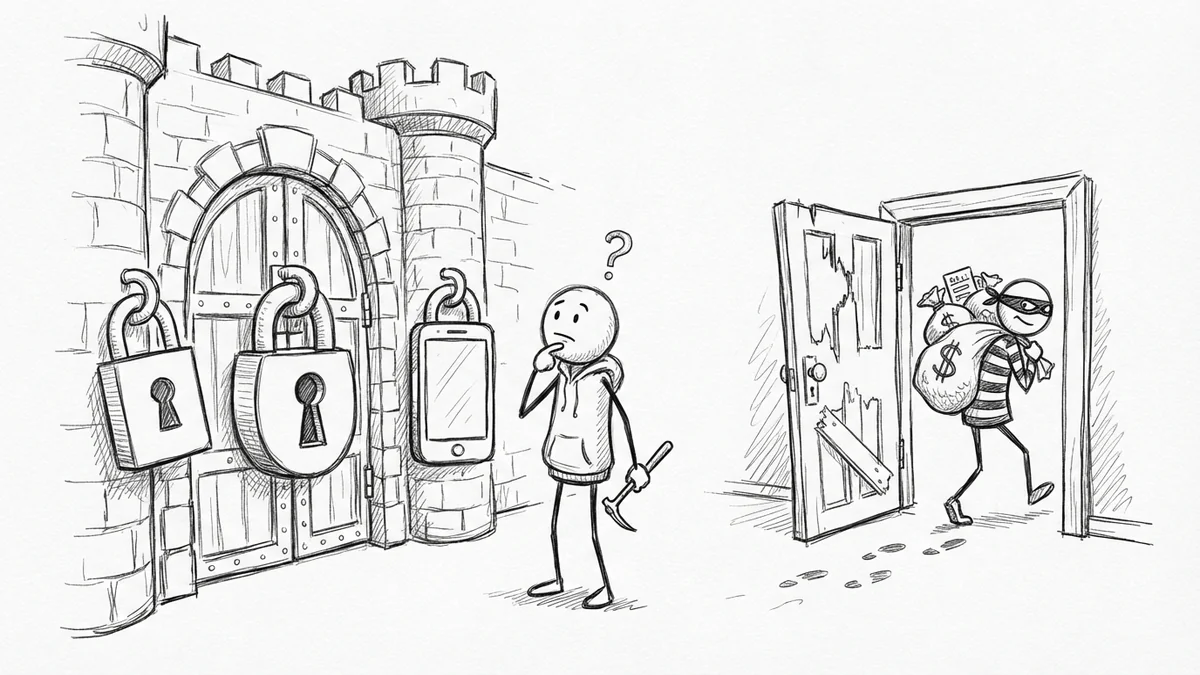

Here's a number that keeps me up at night: 65% of small businesses don't use two-factor authentication. Meanwhile, 83% of organizations got hit with at least one account takeover last year.
Account takeovers cost businesses $17 billion in 2025. Seventeen billion dollars. And most of these attacks could have been stopped by something that takes 20 minutes to set up.
So let's fix that.
What Two-Factor Authentication Actually Does
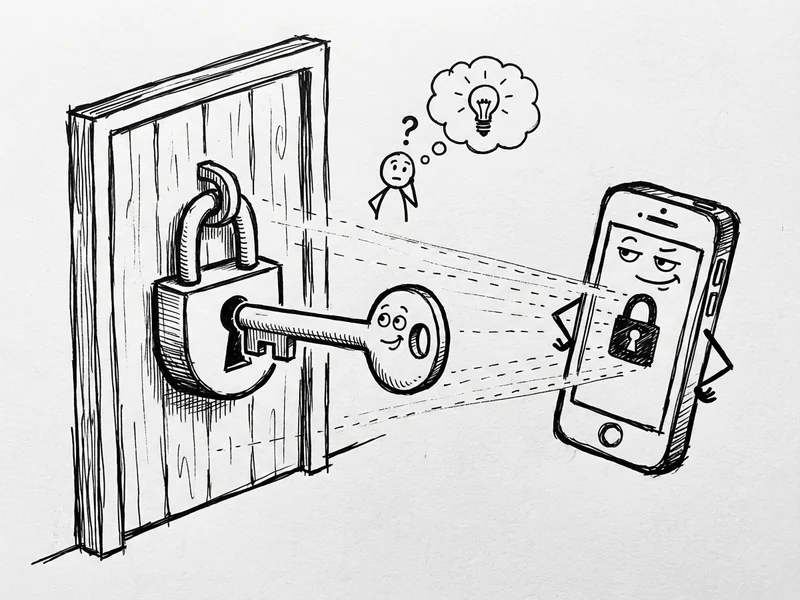
Two-factor authentication (2FA) means you need two things to log in: something you know (your password) and something you have (usually your phone).
Even if someone steals your password—and passwords get stolen constantly through data breaches and phishing—they still can't get in without that second piece.
The numbers are wild: according to CISA (the federal government's cybersecurity agency), MFA makes you 99% less likely to get hacked.
Ninety-nine percent. That's basically a cheat code for security.
Authenticator Apps vs. Text Messages: Pick the App
There are two common ways to get that second factor:
- Text message (SMS) — A code gets texted to your phone
- Authenticator app — An app on your phone generates a code that changes every 30 seconds
SMS is better than nothing. But the app is better than SMS. Here's why.
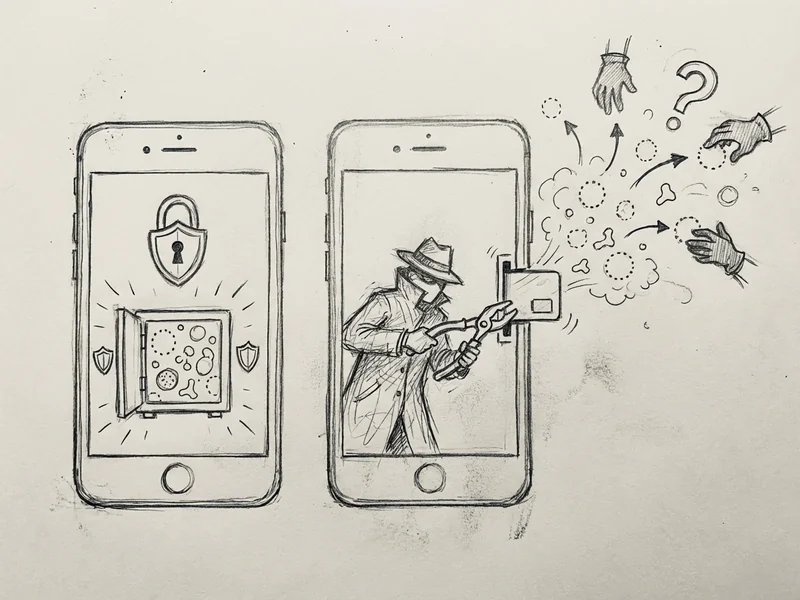
SMS codes travel through your phone carrier. That opens up a nasty attack called SIM swapping—where a scammer convinces your carrier to transfer your phone number to their SIM card. Now they get your texts. Including your security codes.
Authenticator apps generate codes right on your phone. Nothing gets transmitted. Nothing to intercept. 95% of employees using 2FA have figured this out—they're using apps, not texts.
The good news: authenticator apps are free. The two most common ones are Google Authenticator and Microsoft Authenticator. Both work fine. I personally use 1Password's built-in authenticator because it keeps everything in one place, but the free apps do the job.
The 20-Minute Setup: Google Account
Let's start with the big one. Your Google account is probably connected to your email, your calendar, your documents, and your phone. If someone gets into this, they can reset passwords on basically everything else you own.
Step by Step:
- Go to myaccount.google.com (or just Google "Google account settings")
- Click Security in the left sidebar
- Under "How you sign in to Google," click 2-Step Verification
- Click Get started
- Google will ask you to verify your password
- Choose Authenticator app (not phone number)
- Open your authenticator app and scan the QR code Google shows you
- Enter the 6-digit code your app displays
- Done. Your Google account is now protected.
Important: Google will also show you backup codes. Screenshot these or write them down and keep them somewhere safe (not on a sticky note on your monitor). If you lose your phone, these are how you get back in.

Your Bank Account
Most banks have caught on to 2FA, but a lot of them default to text messages. Let's upgrade that.
Step by Step:
- Log into your bank's website or app
- Look for Settings or Security Settings
- Find Two-Factor Authentication or Multi-Factor Authentication
- If they offer an authenticator app option, choose it
- Scan the QR code with your authenticator app
- Enter the code to confirm
Some banks—especially smaller credit unions—only offer SMS. That's still better than nothing. Turn it on. But if your bank offers app-based 2FA, use it.
If your bank doesn't offer any 2FA option in 2025, that's a red flag. Consider finding a bank that takes security seriously.
Social Media Accounts
Social media accounts get hacked constantly. Sometimes it's just embarrassing (spam posts). Sometimes it's worse (scammers messaging your contacts pretending to be you).
Facebook/Meta:
- Settings & Privacy → Settings → Accounts Center → Password and security
- Click Two-factor authentication
- Select your account
- Choose Authentication app
- Scan the QR code
Instagram:
- Profile → Settings → Accounts Center → Password and security
- Same process as Facebook (they're connected now)
LinkedIn:
- Settings → Sign in & security → Two-step verification
- Choose Authenticator app
- Scan the QR code
X (Twitter):
- Settings → Security and account access → Security → Two-factor authentication
- Choose Authentication app
- Scan the QR code
Notice the pattern? It's always: Settings → Security → 2FA → Authenticator app → Scan code. Once you've done it a few times, it takes about 2 minutes per account.
Your Website Admin Panel
If you have a WordPress site, your admin login is a target. Bots try thousands of password combinations every day on WordPress sites. 2FA stops them cold.
For WordPress:
- Install a 2FA plugin. The free ones that work well: WP 2FA or Two Factor Authentication
- Activate the plugin
- Go to the plugin settings
- Choose TOTP (Authenticator App) as your method
- Scan the QR code with your authenticator app
- Enter the code to verify
- Save changes
Now every time you log in to edit your website, you'll need that code from your app. This stops 99% of automated attacks. (While you're at it, check your plugins for security holes—another 10-minute task that could save your site.)
For Squarespace, Wix, or Shopify:
These platforms all have 2FA built in. Look in your account settings under Security. Same process—choose authenticator app, scan the code, done.
"But What If I Lose My Phone?"
This is the question everyone asks. Valid concern. Here's how to not lock yourself out:
- Save your backup codes. Every service that offers 2FA gives you backup codes. These are one-time-use codes that let you in if your phone is gone. Print them out and keep them in a safe. Not on your computer. Not in your email. Printed paper in a secure location.
- Set up 2FA on a second device. If you have an old phone or a tablet, set up your authenticator app there too. Most authenticator apps can be synced across devices.
- Use a password manager with 2FA built in. Apps like 1Password and Bitwarden can store your 2FA codes and sync them across devices. If you lose your phone, you can access them from your computer. (If you don't have a password manager yet, here's how to set one up.)
The 5 minutes it takes to set up backup options will save you hours of headache if something goes wrong.
The "But It's Annoying" Problem
Look, I get it. Another step when logging in. More hassle.
But here's the reality: 44% of small businesses say cost is the main reason they don't use 2FA. Which is wild, because authenticator apps are free.
The real cost is what happens when you don't use it. Account takeovers. Lost access to your business email. Your social media posting scam links. Your bank account drained.
Ten seconds to enter a code is cheap insurance.
Companies with fewer than 25 employees have a 27% MFA adoption rate. Big companies with 10,000+ employees? 87%. The big guys figured this out. Small businesses need to catch up.
The Checklist
Here's your to-do list. Pick an authenticator app (Google Authenticator is fine if you want free and simple) and work through these:
- ☐ Google/Gmail account (~3 min)
- ☐ Primary bank account (~3 min)
- ☐ Credit card accounts (~2 min each)
- ☐ Facebook/Instagram (~3 min)
- ☐ LinkedIn (~2 min)
- ☐ X/Twitter (~2 min)
- ☐ Website admin (WordPress, Squarespace, etc.) (~5 min)
- ☐ Amazon (~2 min)
- ☐ PayPal (~2 min)
- ☐ Any other account with access to money or sensitive info
Set a timer for 20 minutes. See how many you can knock out. Most people can do 4-5 accounts before the timer goes off.
That's it. You're now in the 35% of small businesses that actually takes security seriously. Your future self—the one who doesn't have to deal with a hacked account—will thank you.
Got questions about securing your website or need help setting up 2FA on your business tools? Give me a call—this stuff is exactly what I help Central Coast businesses with.